

Start here
In IQRush, open your account menu at the bottom left, choose Settings, then select Connect under MCP. The screen offers Claude Desktop and ChatGPT. Use the instructions and connection details shown in your own account.ChatGPT
- Select ChatGPT on IQRush’s Connect screen and use Copy for the connection URL.
- In ChatGPT’s app settings, add a custom app named IQRush using that URL. The IQRush screen calls this Apps → Create App; the current ChatGPT flow may include developer-mode access, authentication, and a tool scan before Create.
- Complete the IQRush sign-in and connection approval shown by ChatGPT.
- In a chat, select or mention the IQRush app and ask, “List my IQRush projects.” Choose the project you want to explore.
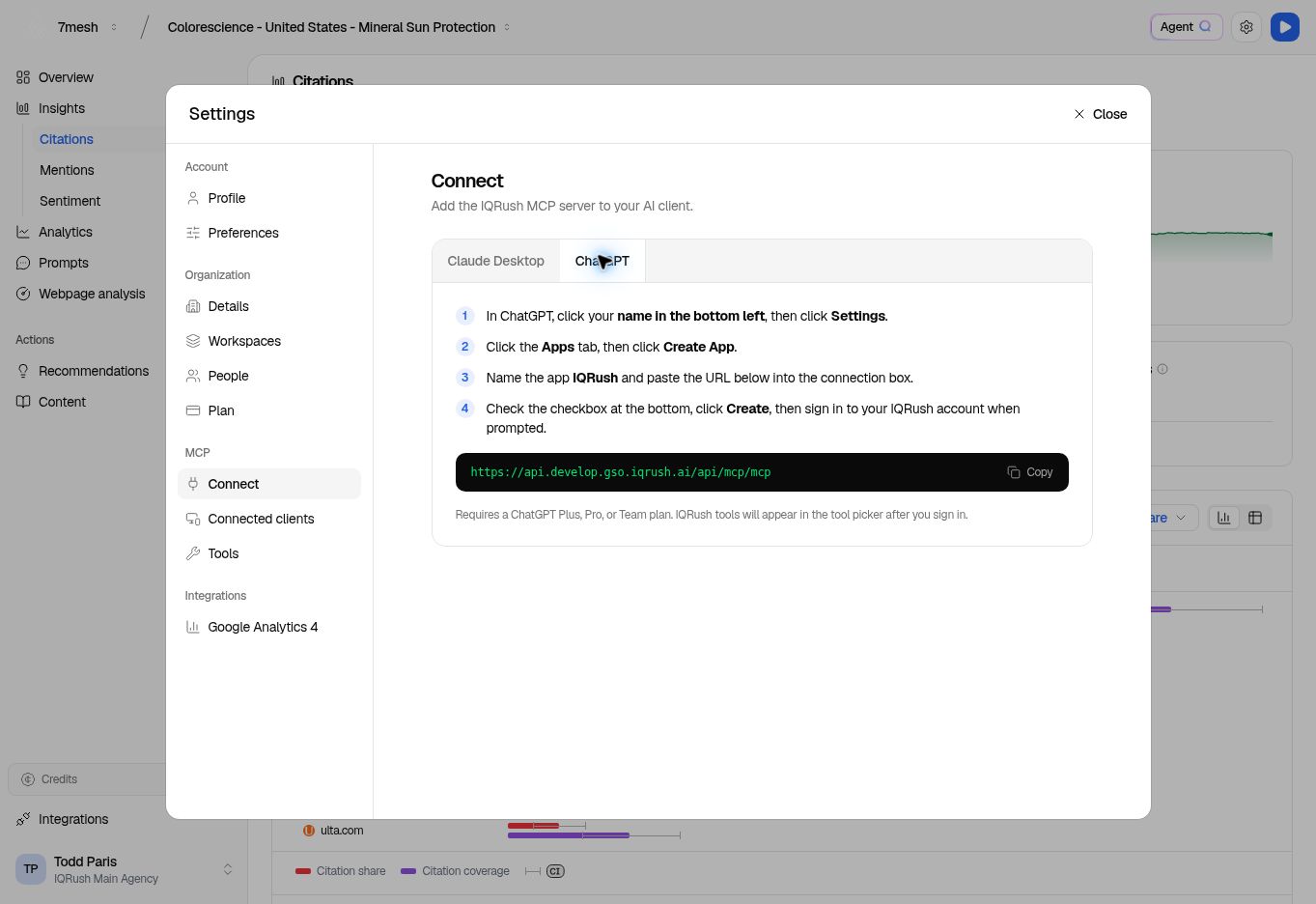
Select ChatGPT, then copy the connection URL from your own IQRush account. This Dev screenshot illustrates the controls. Available setup options depend on your ChatGPT account and workspace permissions.
Claude Desktop
- Select Claude Desktop, then Mac or Windows, on IQRush’s Connect screen.
- Use Copy for the setup command. Follow the displayed instructions in Terminal on Mac or PowerShell on Windows.
- Fully quit and reopen Claude Desktop.
- Open a chat and ask, “List my IQRush projects.” Follow the sign-in link when prompted, then select your project.
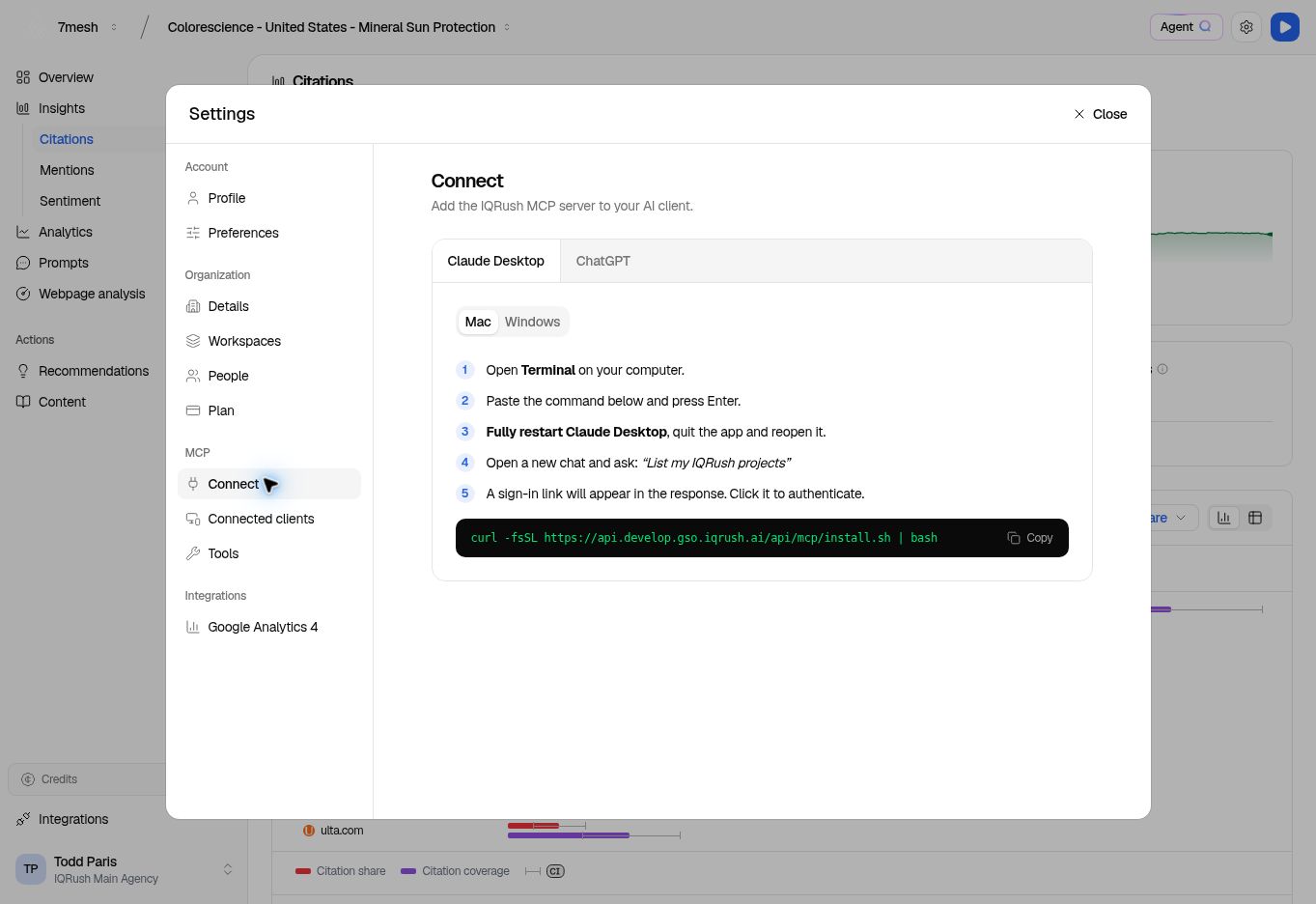
Choose your operating system and use the instructions in your own account. The screenshot shows the Mac route in Dev.
Keep the context clear
Name the project and the completed run you want to use. Add the platform, topic, or audience profile when relevant. Your connected assistant does not automatically follow the page or filters you have open in IQRush. For example: “Use the latest completed Colorescience run, across all measured platforms. Explain our citation coverage for the mineral sun protection topic.” Ask the assistant to confirm the project and run date before a longer assessment. If you introduce a new audience, product, or market, first ask whether the existing measurement includes it.Ask a useful question
These are the same starting questions as the Agent Q guide. Use the question and report gallery to explore more business perspectives.