

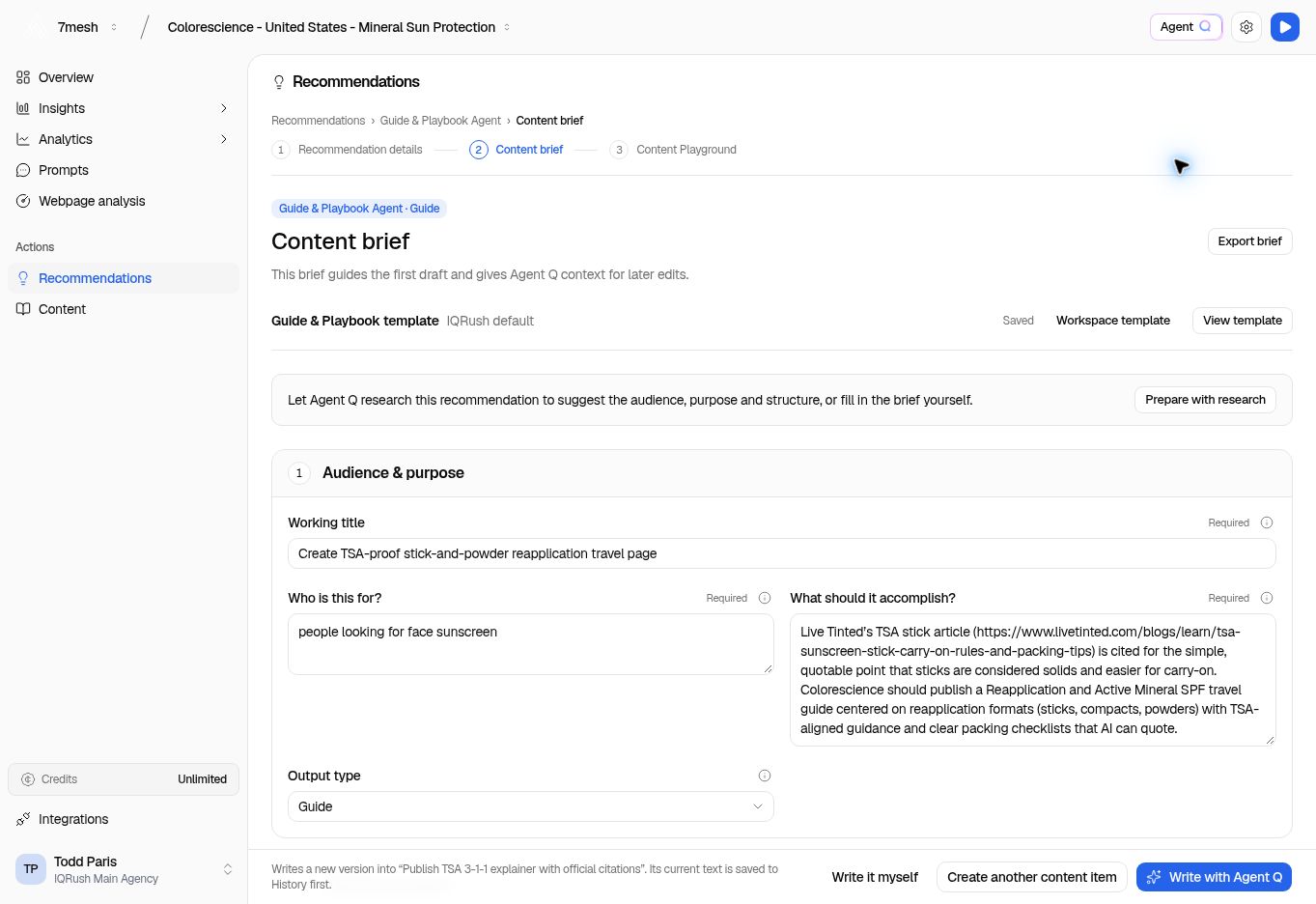
This is a Guide brief. Scroll below Audience & purpose for Content structure and Supporting guidance. The structure can differ for another output type.
Complete the brief
For the Guide example, review these fields:
Be specific. For a travel guide, “help a traveler choose a practical reapplication format” is clearer than “create engaging thought leadership.”
Add supporting guidance
Use Prepare with research when you want help preparing the brief. Review what it adds before using it. Writing requirements lists requirements for the writing task. Treat these as instructions to satisfy, not as proof that the finished draft has passed a review. To attach brand guidance:- Select Upload brand guidelines. Choose a TXT, Markdown, PDF, or DOCX file within the displayed limit, or paste guidance into Review extracted text or paste guidance. PDFs must contain extractable text; follow the page and character limits in the dialog.
- Read the extracted text and remove anything the writer does not need.
- Set Use this guidance for to This brief only, This brief and new briefs in this project, or, if you have permission, This brief and new briefs across the workspace.
- Check Include brand & writing guidance in this brief as appropriate.
- Select Use this guidance to attach it. Uploading the file alone does not attach it.
Use brief templates
View template opens the template for the brief. Review the structure, required facts, writing guidance, and any other fields available for its format. Changes apply to this brief; closing the edited template saves them. Keep instructions for this particular recommendation in its brief. Workspace template controls the starting template for new briefs of that format across the workspace. A workspace administrator can edit and Publish it. Closing an edited workspace template also publishes the edits, as the dialog explains. Read that message before closing after a change. Publishing a workspace template changes new briefs only. It does not rewrite existing briefs or drafts. Reset to IQRush default is available when a workspace template has been published; review the reset confirmation before using it. Wait for the Saved indicator after changes.Start writing or share the brief
- Write it myself opens the writing route for you to draft the piece.
- Write with Agent Q uses the brief to prepare a draft.
- Create another content item starts a separate item when offered.
- Export brief lets you hand the brief to someone else.