Agent Q helps you explore IQRush through a conversation. Start on your project’s summary page, Overview, then use the right-hand panel while you read results, investigate recommendations, or work on content. Your questions can take different business perspectives while staying connected to the project’s measured evidence. IQRush’s stability checks, signal-to-noise assessment, and confidence intervals help you judge when that evidence is decision-grade.

Start here

  1. Open the project you want to explore.
  2. On Overview, type in Ask the agent, or choose a suggested question.
  3. On other supported project pages, select the Agent button with the Q symbol at the top. Agent Q opens beside your work in the right-hand panel.
  4. Ask one question, then use follow-ups to explore the answer.
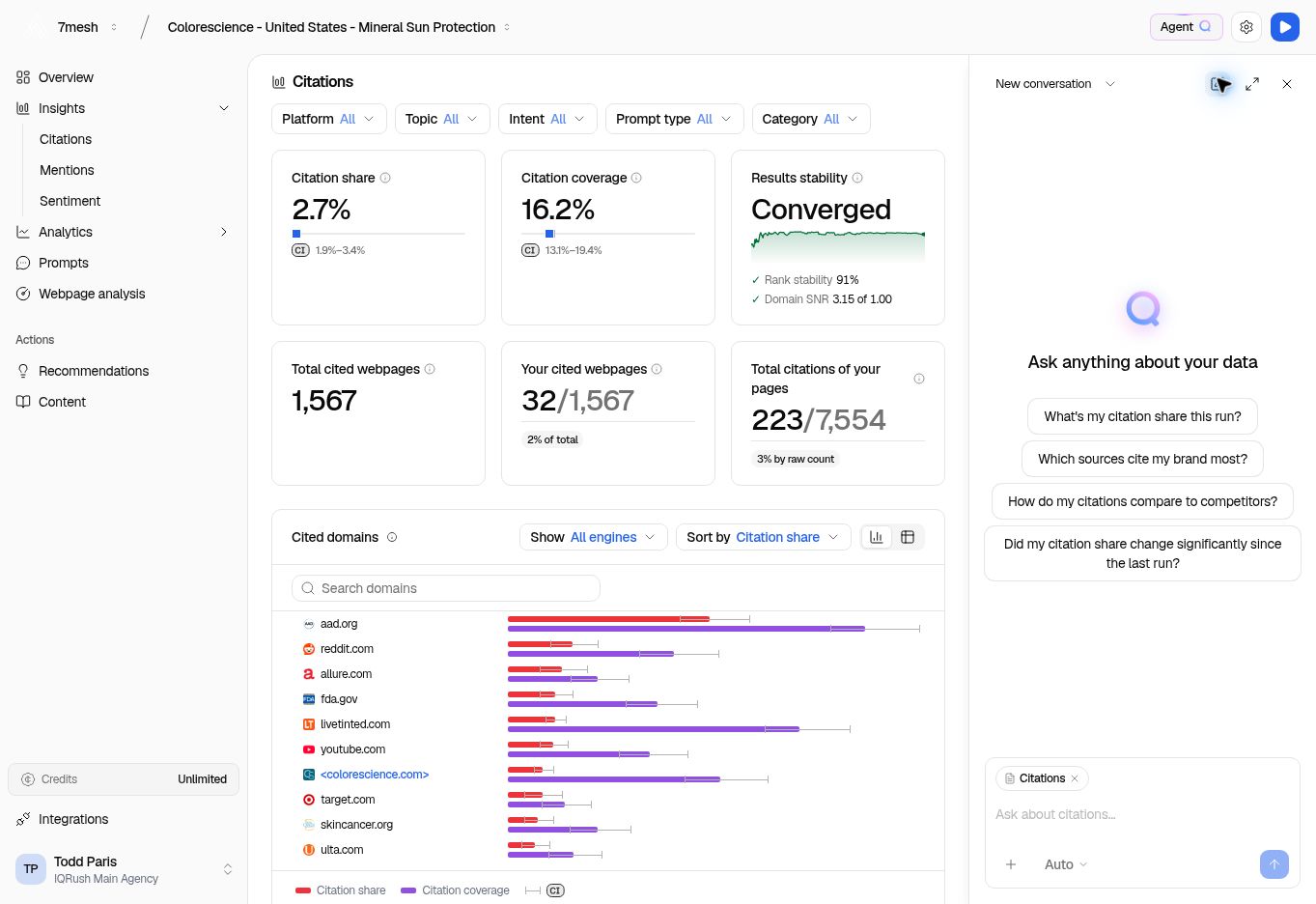
Agent Q in the right-hand panel beside Citations, with suggested questions and a Citations context chip.

The Agent button opens the panel. The Citations chip identifies the attached page context; the cards alongside it show the project’s measurements.

The panel can stay open as you move between supported project pages. Expand panel gives you more room. Collapse panel returns it to the right rail, and Close puts it away.

Keep the context clear

Check the project, run, and filters you mean. Review the context chips above the message box, and name the platform or topic when you want a narrower answer. A page’s context helps orient the conversation; stating the selection makes your question precise. For example: “Use the latest completed Colorescience run, across all measured platforms. Explain our citation coverage for the mineral sun protection topic.” On a recommendation, Ask Agent Q brings that recommendation into the conversation. In Content Playground, check whether the context is the selected section or the whole document before asking for an edit.

Ask a useful question

These examples also appear in the connected ChatGPT and Claude guide. The question and report gallery adds channel, product, influencer, financial-services, and private-equity examples, with the data each needs.

Turn the answer into work

Ask for the form you need: a comparison table, a short assessment, a prioritized list, or a report for your team. Include the audience and the decision it should support. For a longer write-up, you can ask Agent Q for a downloadable Markdown document. For content work, complete the brief and choose Write with Agent Q. In Content Playground, read any Suggested revision before selecting Apply to content. Choose Discard if it does not fit. Applying a revision changes the working draft; review and publication remain part of your normal workflow.

Check the evidence

Ask Agent Q to include the project, run date, measurement scope, and supporting results. For a ranking assessment, review both rank stability and Domain SNR. For changes between runs, request the relevant confidence intervals and change assessment. Compare an answer’s references with the result page. If a number differs, first check the run, filters, metric, and aggregation. An SNR explanation should refer to the same domain-level scope as the Domain SNR card you are reading. Decision-grade analysis preserves what the evidence can support. Ask the assistant to identify missing data and distinguish measured findings from its recommendations.

Continue the conversation

Your saved conversations remain available as you work through the project. Use the conversation selector to return to a discussion. In the expanded panel, Show chats opens the project’s conversation list, and Search chats helps you find an earlier discussion. The docked panel’s history is associated with the current page. Moving to another page can open that page’s latest conversation; expand the panel to find conversations from elsewhere in the project. Check the conversation title before continuing. Use New conversation for a separate discussion. Conversations in ChatGPT or Claude are separate from Agent Q’s history. Next: Use ChatGPT or Claude with IQRush, choose a question or report, or prepare a content brief.