

Score the current text
- Open the draft in Content Playground.
- Wait for the latest edits to save.
- Select Score content. If the text has changed since scoring, use Update score when shown.
- Read the results once scoring completes.
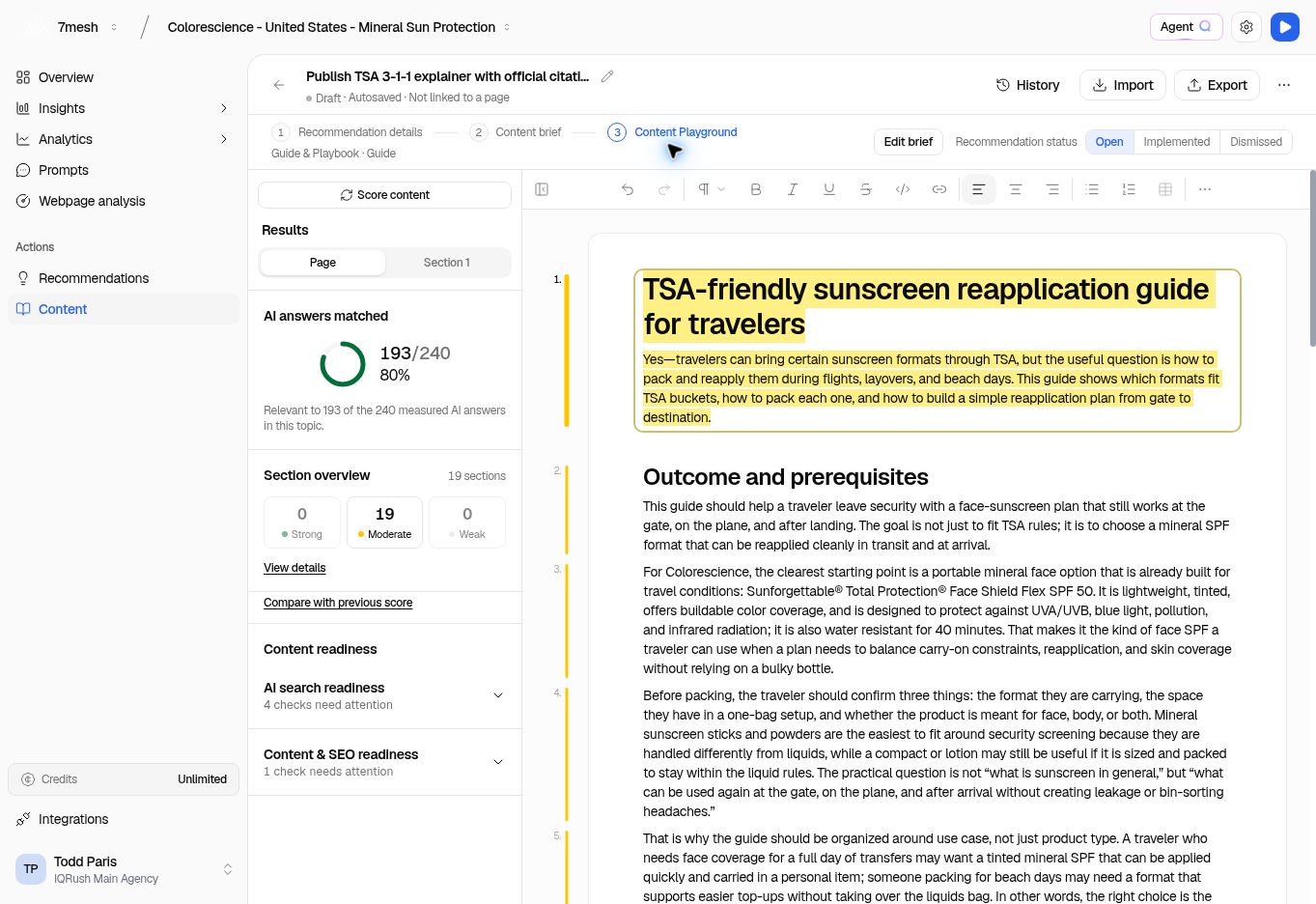
The Page tab gives the whole-draft result. The Section 1 tab (or the selected section’s number) lets you inspect that section.
Read the result in plain terms
In the example, 193 / 240, 80% means the content was relevant to 193 of the 240 measured answers in that topic. It does not mean an 80% probability of being cited.
The readiness checks are separate from the matched-answer result. A draft can match many answers and still need work on accuracy, coverage, or readiness.
Read the scope sentence under AI answers matched: it identifies whether the comparison uses a topic or the project. Section overview groups the sections by the available citation and relevance evidence; Strong, Moderate, and Weak are not editorial grades for the writing.
Content scoring also serves a different purpose from Results stability. A high matched-answer percentage does not establish that a project’s visibility ranking has converged, and scoring a draft does not show that the live page has earned new citations.
Improve one section at a time
- Choose a section in the document or the section detail.
- Read the explanation and available evidence for that section.
- Make an edit that improves the reader’s understanding: answer the question more directly, add a supported fact, or clarify a confusing passage.
- Update the score.
- Compare the new result with the earlier score, where available.