

Before launch
On Review your prompt set:- Read questions from each topic, rather than checking only the first few rows.
- Use Search prompts, Intent, and Prompt type to narrow the list. A filter may be absent if there are no labels to filter yet.
- Review each question’s wording and labels. Make changes with the controls available in the table.
- Use Add Prompt if another question is needed and the control is available. Follow any change allowance shown on the screen.
- Select Validate when it is offered to check edits or fill missing labels.
- Read the validation result, then select Continue.
Understand the quality checks
IQRush checks the uploaded file and reviews the prompt set at different stages. Read both the upload messages and the review findings.
Review similarity in meaning, sometimes called semantic similarity, yourself as well. Two differently worded prompts may still ask essentially the same thing. The automated checks help you find issues; they do not guarantee that every repeated idea or missing customer need has been found.
Use Add Prompt and the editing controls where available to address a gap, then Validate when offered. Validation can fill missing labels and flag wording; it is not a promise to rewrite or balance the whole set for you.
The review can show warnings about the set. If a warning dialog offers Launch anyway, continuing does not resolve the warning or certify the result. Follow any blocking message if launch is refused, and correct the issue it identifies. The final launch checks still apply.
Nothing runs until you select Launch on the final setup screen.
Use the prompt count and quality checks as preparation. The completed measurement still needs to satisfy the stability and signal-to-noise checks described in Understand your first results.
After launch
Open Prompts in the left menu to see the project’s questions.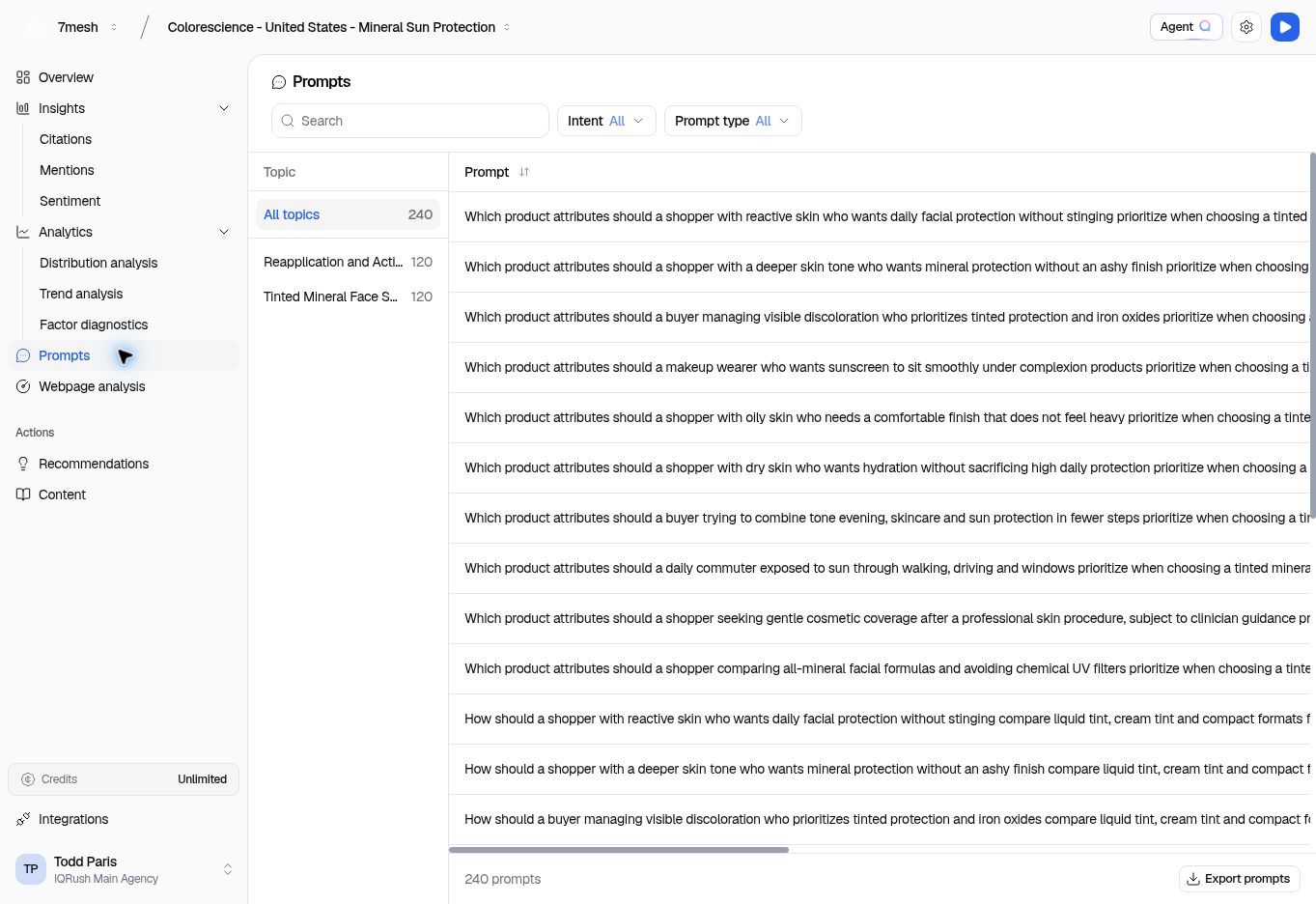
Choose a topic on the left. Search and filters narrow the question list. Export prompts is at the bottom right.
- Choose All topics or a specific topic.
- Use Search, Intent, or Prompt type to find the questions you need.
- Read the Prompt, Intent, and Prompt type columns. Scroll across the table when a long question pushes other columns out of view.
- Select Export prompts to download the set.