Use Webpage analysis to inspect how a page relates to the AI answers in your project. The page is divided into segments so you can examine specific parts.

Open a page

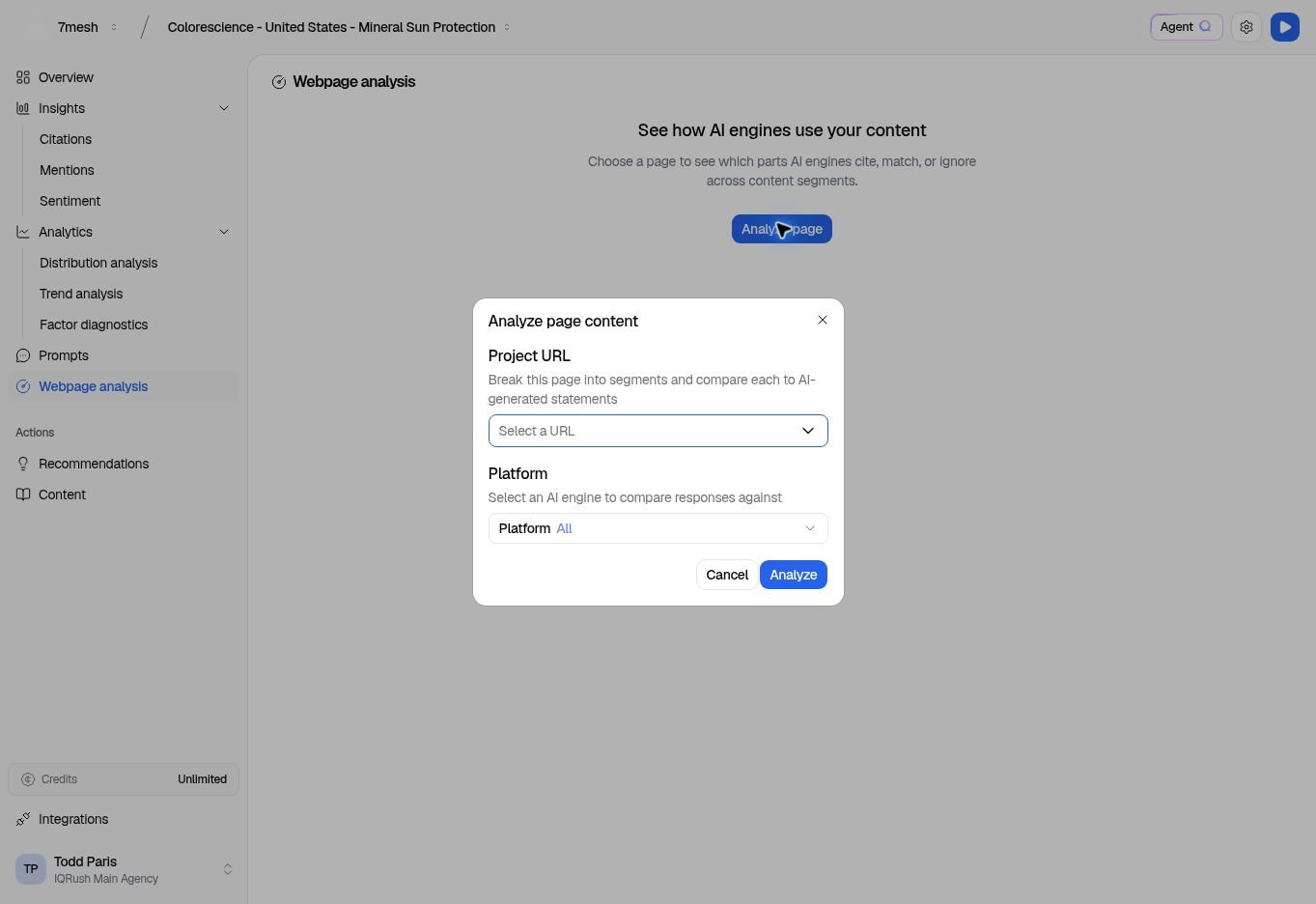
  1. Select Webpage analysis in the left menu.
  2. If no page is selected, choose Analyze page.
  3. In Analyze page content, choose Project URL.
  4. Set Platform or leave it on All.
  5. Select Analyze.
Analyze page content dialog with Project URL and Platform.

Choose a URL from the project’s available pages. This selector can include sources beyond your own website.

Inspect the content

The Content view shows the page and a list of segments. Select a segment to focus on that part.
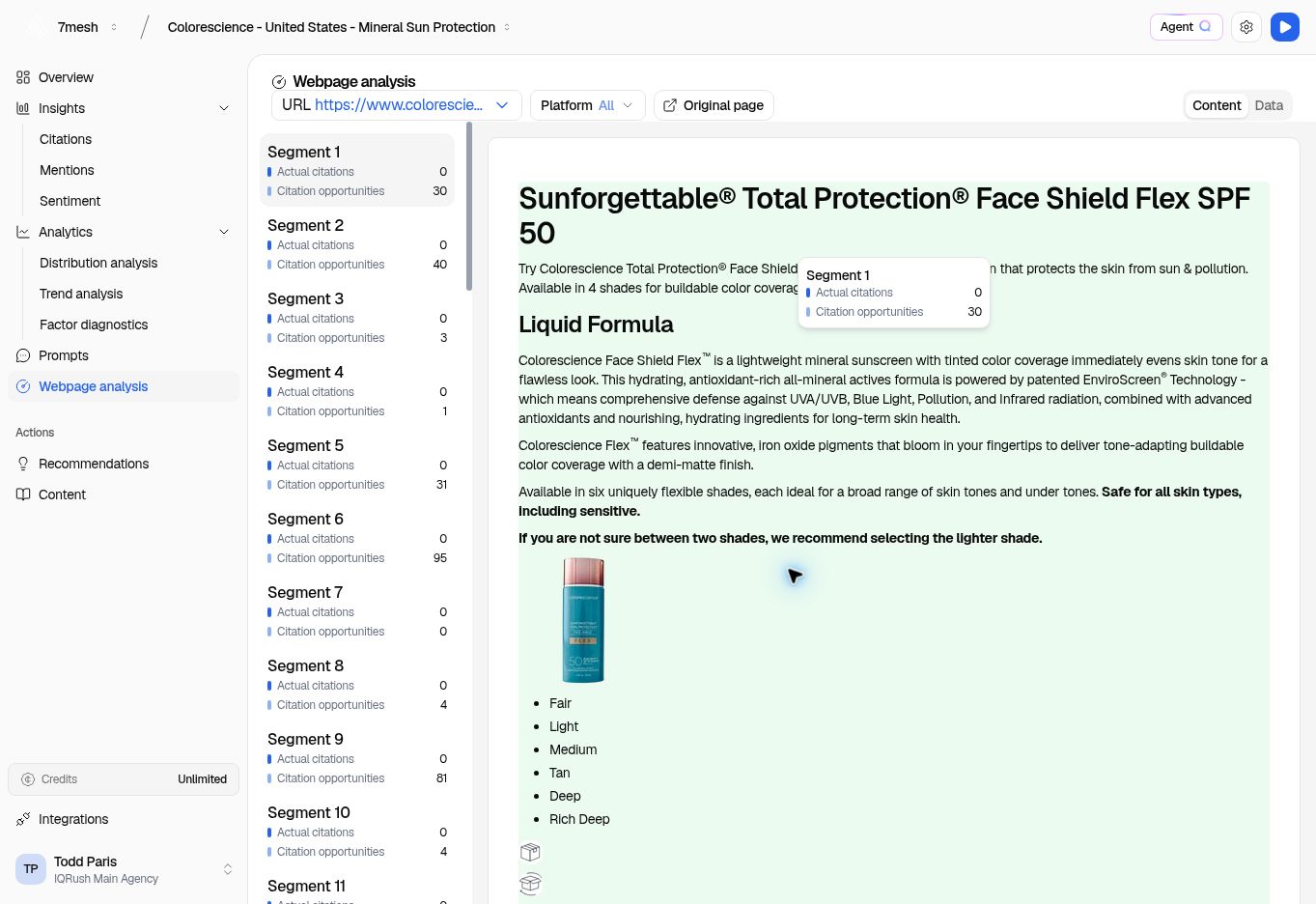
Colorescience Face Shield Flex page in Webpage analysis with segment-level counts.

The left column lists segments. The highlighted area identifies the selected part of the page.

Two labels are particularly useful:
  • Actual citations: recorded citations associated with the segment.
  • Citation opportunities: relevant matches that the view identifies as opportunities.
An opportunity is not a recorded citation or a promise of a future citation. In the screenshot, Segment 1 has opportunities but no actual citations. Use Original page to read the source page. The analyzed content represents what is available to this project’s selected run; a live website may have changed since that capture.

Read the data

Choose Data for the structured view. Inspect the selected segment and its available evidence. Keep the platform and URL selections in mind when comparing segments. Choose another URL from the selector to inspect another page. Use Platform to focus on a single engine.

Move from analysis to editing

To work on your own page, open Content → Open existing content and choose it there. Webpage analysis is for inspecting evidence; Content Playground is where you work on a draft.

Ask about a page

“Compare the available page content with the questions it needs to answer. Suggest the most useful product-page improvements.” Name the URL in Agent Q or connected ChatGPT or Claude. Ask the assistant to identify any page content it cannot access. See more questions and reports. Next: Open or create content.