

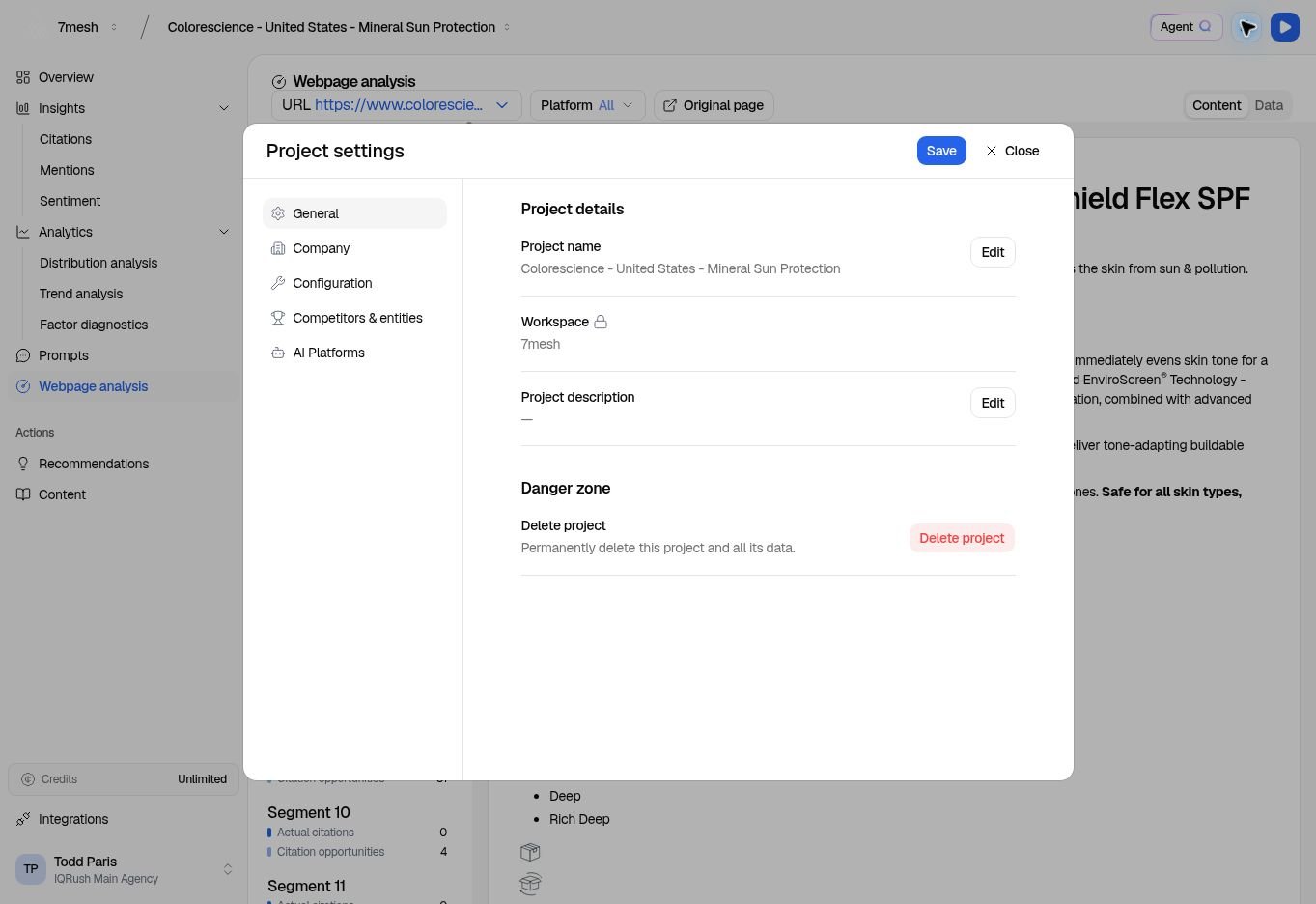
Use the sections on the left. General contains the project name, workspace, and description.
Know which setting to open
Change descriptive information
In General, select Edit beside Project name or Project description. Make the change, then use that row’s Save. The Workspace is locked. Choose the intended workspace when creating a project. In Company, review Company name and What the company does. Use Edit and Save to correct them when you have permission. The Company information is used by the Brand Fit check in Content Readiness, so describe the business accurately and concretely.Understand the locked configuration
Configuration is locked to preserve comparison across runs. The page provides Create a new project links when you need different topics, brand terms, or pages. Use a new project for a genuinely different measurement scope. Renaming a project does not change what it measures.Manage competitors and entities
Open Competitors & entities. Review Tracked competitors and any Added competitors, then select Manage under Manage project entities to work with the entity list. Use Included, Excluded, and Show to review the current list. Add starts the flow for another entity. Review the information and any preview offered before confirming it. Exclude removes an entity from the project’s displayed results for everyone using the project; it is not just a temporary filter for your own view. Use Include in the Excluded list to restore an entity when appropriate. Follow the confirmation and save behavior of the entity control you use. These controls save their changes directly; the settings header’s Save is not an extra confirmation for them. Adding an entity is separate from changing the locked Brand terms that define the project’s target brand.Save an AI-platform change
After changing AI Platforms, select Save at the top. The Save changes? dialog lets you choose:- Save to keep the change for a later run.
- Save and re-run to save it and start a new measurement, subject to the displayed credit requirement.