

Find your connection details
- Open Settings in IQRush.
- Under MCP, select Connect.
- Choose ChatGPT for the remote URL or Claude Desktop for the installer instructions.
- Copy the value shown in the interface.
ChatGPT
In ChatGPT, open Settings → Apps and use the custom app creation option available to your account. Developer mode or workspace administrator access may be required. Name the connection IQRush, enter the remote URL, and complete the IQRush sign-in and consent flow. Enable or select the connection in the conversation where you want to use it.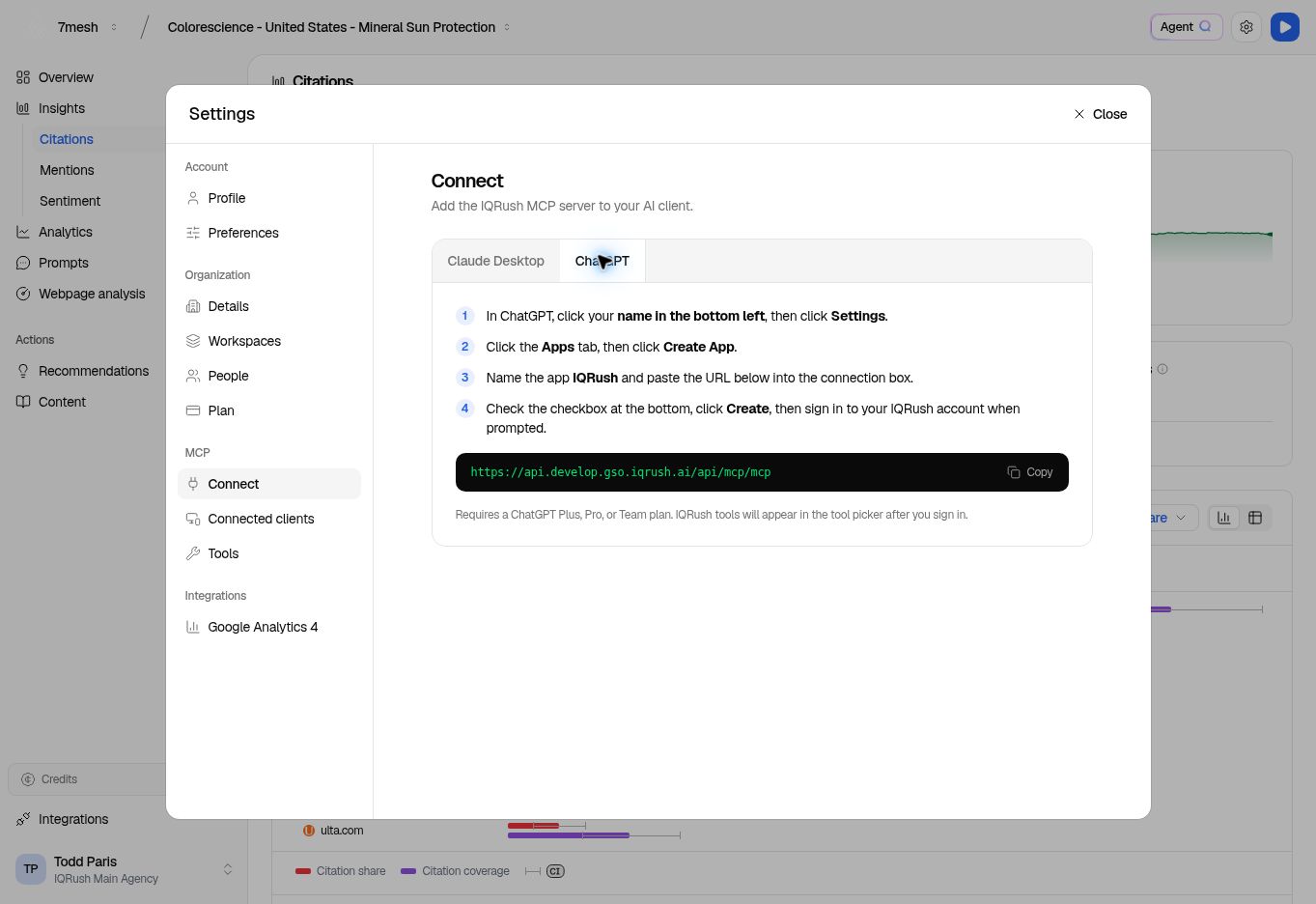
Dev interface: the URL belongs to Dev. The plan text in this captured screen is not a current eligibility guide.
Claude remote connection
In Claude’s connector settings, add a custom remote connector using the IQRush remote URL. Complete the IQRush browser sign-in and consent flow. Follow Anthropic’s current remote connector instructions for the controls available to your account and workspace.Claude Desktop installer
The Claude Desktop tab in IQRush offers macOS / Linux and Windows instructions. Copy the command for your operating system, run it in the named terminal, then fully quit and reopen Claude Desktop. Ask it to list your IQRush projects and follow the sign-in link if prompted.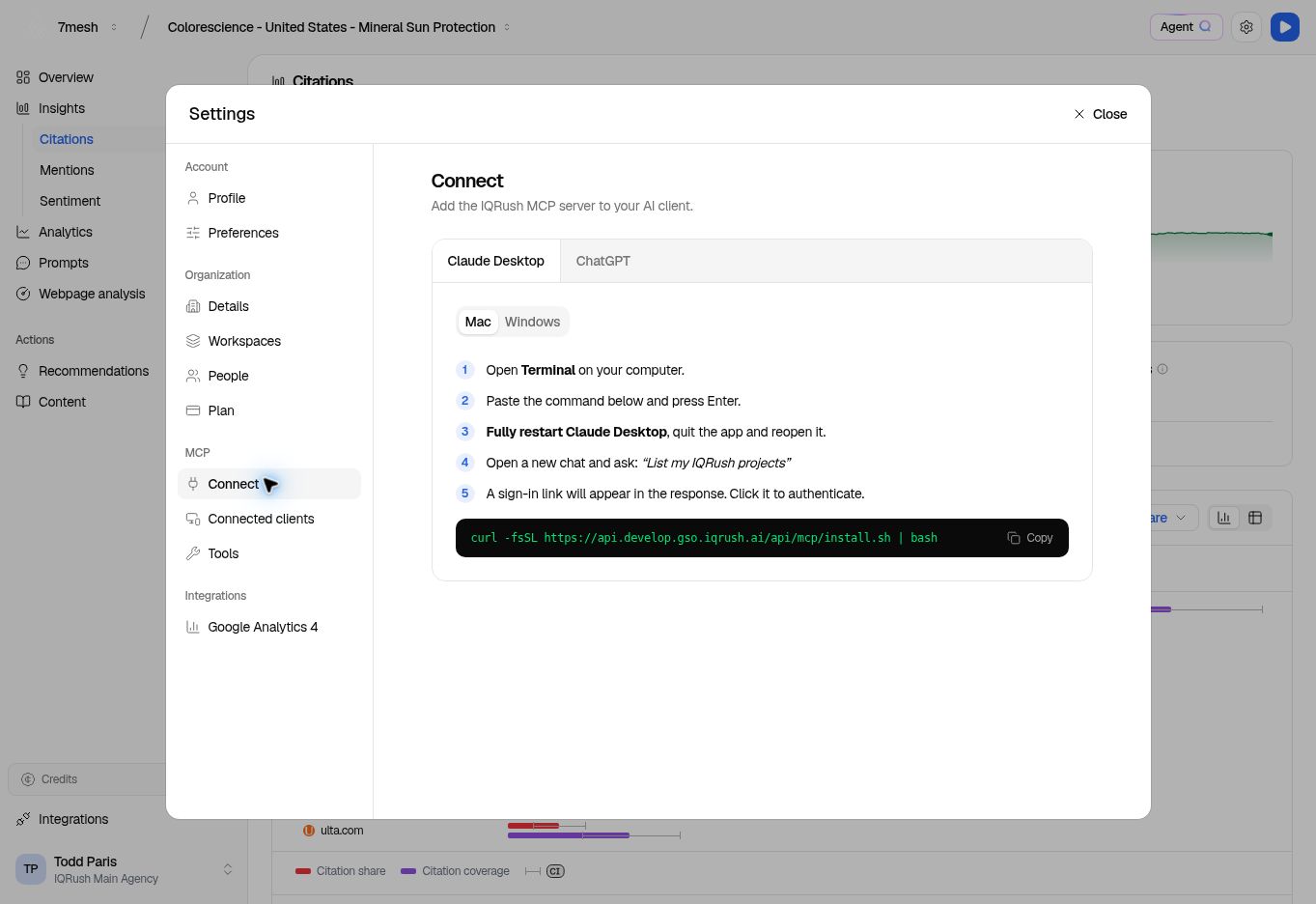
Dev interface: copy the installer command from your own environment. The installer configures a local connector; this is a different setup path from a remote connector in Claude.