> ## Documentation Index
> Fetch the complete documentation index at: https://docs.iqrush.ai/llms.txt
> Use this file to discover all available pages before exploring further.
# Explore your project with ChatGPT or Claude
> Connect ChatGPT or Claude to IQRush when you want to explore project results in the assistant you already use.
Connect ChatGPT or Claude to IQRush when you want to explore project results in the assistant you already use. IQRush’s **MCP connection** gives the assistant access to supported tools and the project data your account is authorized to use.
MCP stands for **Model Context Protocol**. Here, it is the connection between your assistant and IQRush. You can ask ordinary questions about the measurements and request a report suited to your team.
## Start here
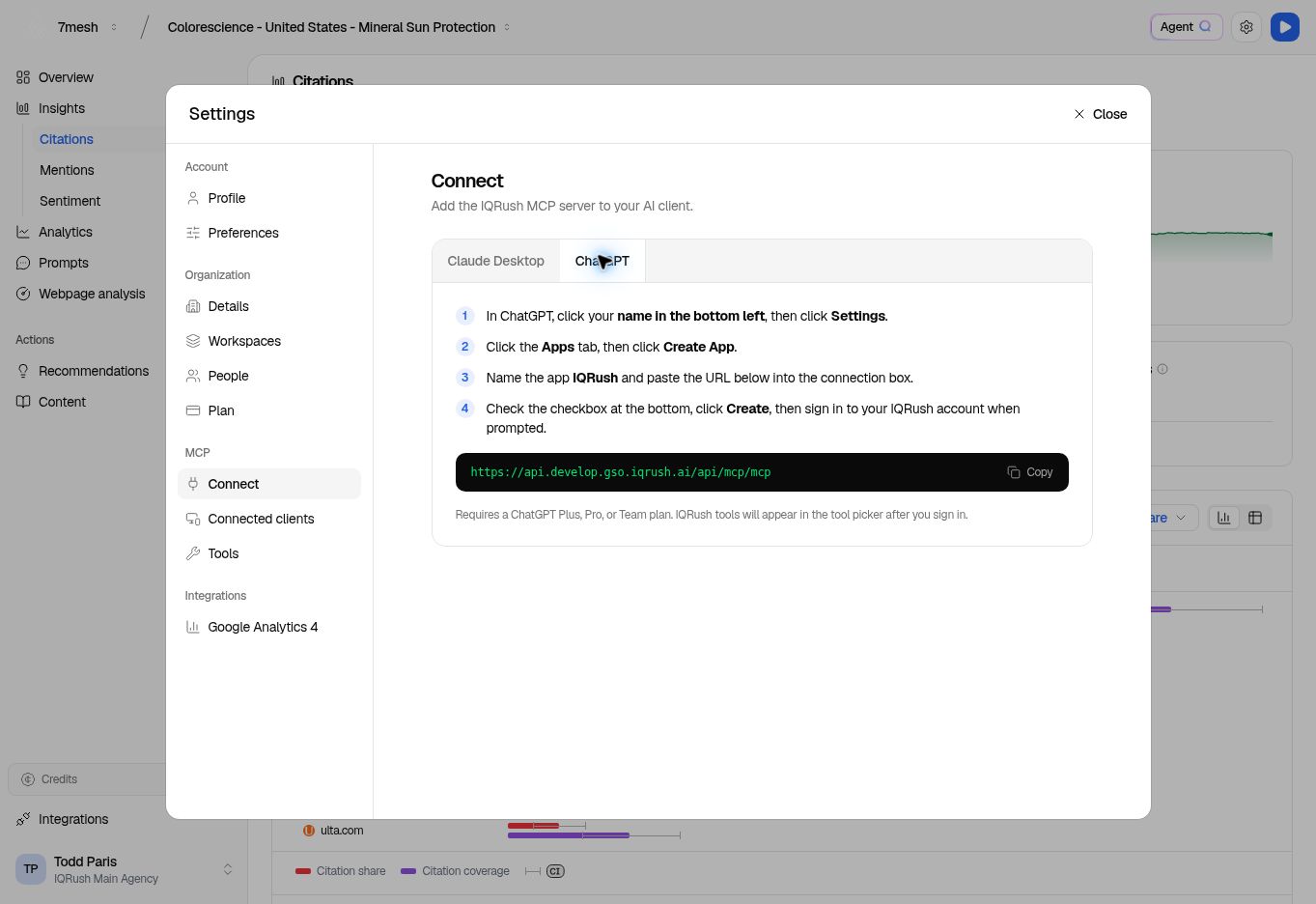
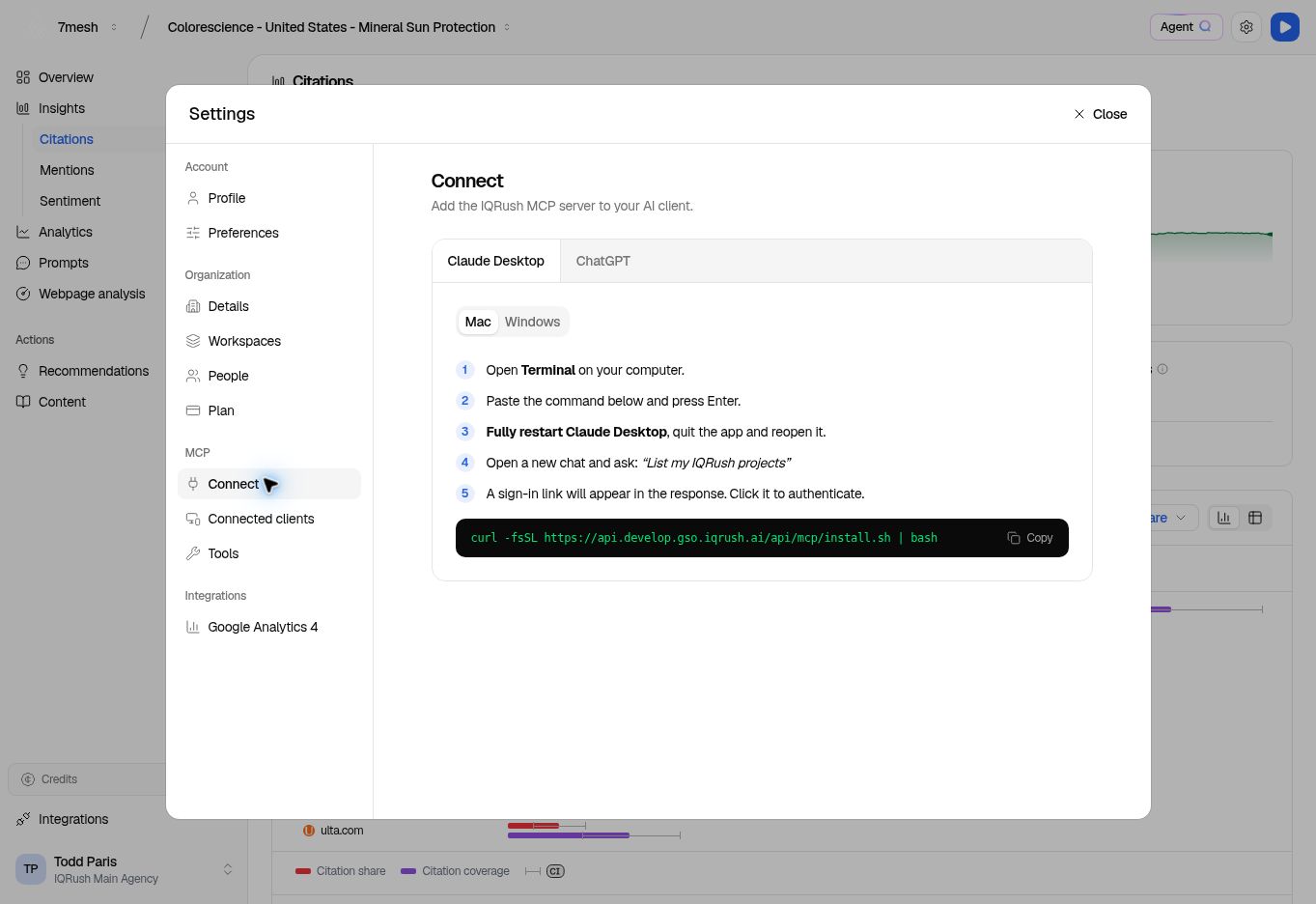
In IQRush, open your account menu at the bottom left, choose **Settings**, then select **Connect** under **MCP**. The screen offers **Claude Desktop** and **ChatGPT**. Use the instructions and connection details shown in your own account.
### ChatGPT
1. Select **ChatGPT** on IQRush’s **Connect** screen and use **Copy** for the connection URL.
2. In ChatGPT’s app settings, add a custom app named **IQRush** using that URL. The IQRush screen calls this **Apps → Create App**; the current ChatGPT flow may include developer-mode access, authentication, and a tool scan before **Create**.
3. Complete the IQRush sign-in and connection approval shown by ChatGPT.
4. In a chat, select or mention the IQRush app and ask, “List my IQRush projects.” Choose the project you want to explore.
 ### Claude Desktop
1. Select **Claude Desktop**, then **Mac** or **Windows**, on IQRush’s **Connect** screen.
2. Use **Copy** for the setup command. Follow the displayed instructions in **Terminal** on Mac or **PowerShell** on Windows.
3. Fully quit and reopen Claude Desktop.
4. Open a chat and ask, “List my IQRush projects.” Follow the sign-in link when prompted, then select your project.
### Claude Desktop
1. Select **Claude Desktop**, then **Mac** or **Windows**, on IQRush’s **Connect** screen.
2. Use **Copy** for the setup command. Follow the displayed instructions in **Terminal** on Mac or **PowerShell** on Windows.
3. Fully quit and reopen Claude Desktop.
4. Open a chat and ask, “List my IQRush projects.” Follow the sign-in link when prompted, then select your project.
 Assistant plans, administrator controls, and setup labels can change. If an option is missing, check your workspace permissions and the current [ChatGPT MCP app guidance](https://help.openai.com/en/articles/12584461-developer-mode-and-mcp-apps-in-chatgpt). Claude also supports remote custom connectors; see [Claude’s connection guidance](https://support.claude.com/en/articles/11175166-get-started-with-custom-connectors-using-remote-mcp) if your team uses that route.
## Keep the context clear
Name the project and the completed run you want to use. Add the platform, topic, or audience profile when relevant. Your connected assistant does not automatically follow the page or filters you have open in IQRush.
For example: “Use the latest completed Colorescience run, across all measured platforms. Explain our citation coverage for the mineral sun protection topic.”
Ask the assistant to confirm the project and run date before a longer assessment. If you introduce a new audience, product, or market, first ask whether the existing measurement includes it.
## Ask a useful question
| What you want to understand | Try asking |
| - | - |
| Strength of the evidence | “Is the latest run decision-grade for comparing cited domains? Explain rank stability, Domain SNR, and any limits.” |
| Competitive position | “Where do competitors appear when we do not? Show the topics and supporting answers.” |
| Meaningful change | “What changed between the latest two completed runs? Include the confidence intervals and change assessment.” |
| Sources that matter | “Which sources support competitors’ brand mentions but do not support ours?” |
| Different perspectives | “Compare our visibility by the topics and audience profiles available in this project. Identify gaps in the data.” |
| A useful summary | “Prepare a one-page leadership summary with the main findings, supporting evidence, and three recommended next steps.” |
These are the same starting questions as the [Agent Q guide](/guides/23-agent-q). Use the [question and report gallery](/guides/31-questions-and-reports) to explore more business perspectives.
## Turn the answer into work
Specify the audience, question, and output you need. For example: “Create a channel visibility report for our commercial team. Show the cited retailers and distributors, supporting URLs, and three opportunities to investigate.”
You can supply business context or research alongside the IQRush results. Ask the assistant to distinguish measured findings, outside research, and recommendations. Available file formats depend on the assistant you use.
The connection described here supports reading and analyzing available IQRush data. For **Write with Agent Q**, **Apply to content**, and recommendation-specific work, use the corresponding IQRush guides. If a connected assistant needs a brief or recommendation it cannot retrieve, provide that material explicitly.
## Check the evidence
Keep IQRush’s decision-grade checks in the report: rank stability and signal-to-noise for the relevant ranking, confidence intervals for estimates, and the change assessment for comparisons over time.
Request the project, run dates, filters, supporting answers or URLs, and any gaps in the data. Compare unexpected values with the same selection in IQRush. An assistant’s interpretation should remain tied to the measured evidence and its uncertainty.
## Continue the conversation
Follow up in the same ChatGPT or Claude conversation. When a follow-up needs fresh IQRush data, make sure the connection is enabled or selected; in ChatGPT, select or mention the app again for that request. When you start another chat, restate the project and measurement scope.
ChatGPT, Claude, and Agent Q keep separate conversation histories. To carry a discussion between them, provide a short summary with the project, run, scope, and question you want to continue.
In IQRush, **Settings → MCP → Connected clients** shows connection status. To end a client’s access, use its **Client actions → Disconnect** control and review the confirmation. Reconnecting requires signing in again. **Tools** lists the available IQRush capabilities.
**Next:** [Choose a question or report](/guides/31-questions-and-reports), [work with Agent Q](/guides/23-agent-q), or [check your first results](/guides/06-understand-results).
This documentation is built and hosted on [Mintlify](https://mintlify.com), a developer documentation platform.
Assistant plans, administrator controls, and setup labels can change. If an option is missing, check your workspace permissions and the current [ChatGPT MCP app guidance](https://help.openai.com/en/articles/12584461-developer-mode-and-mcp-apps-in-chatgpt). Claude also supports remote custom connectors; see [Claude’s connection guidance](https://support.claude.com/en/articles/11175166-get-started-with-custom-connectors-using-remote-mcp) if your team uses that route.
## Keep the context clear
Name the project and the completed run you want to use. Add the platform, topic, or audience profile when relevant. Your connected assistant does not automatically follow the page or filters you have open in IQRush.
For example: “Use the latest completed Colorescience run, across all measured platforms. Explain our citation coverage for the mineral sun protection topic.”
Ask the assistant to confirm the project and run date before a longer assessment. If you introduce a new audience, product, or market, first ask whether the existing measurement includes it.
## Ask a useful question
| What you want to understand | Try asking |
| - | - |
| Strength of the evidence | “Is the latest run decision-grade for comparing cited domains? Explain rank stability, Domain SNR, and any limits.” |
| Competitive position | “Where do competitors appear when we do not? Show the topics and supporting answers.” |
| Meaningful change | “What changed between the latest two completed runs? Include the confidence intervals and change assessment.” |
| Sources that matter | “Which sources support competitors’ brand mentions but do not support ours?” |
| Different perspectives | “Compare our visibility by the topics and audience profiles available in this project. Identify gaps in the data.” |
| A useful summary | “Prepare a one-page leadership summary with the main findings, supporting evidence, and three recommended next steps.” |
These are the same starting questions as the [Agent Q guide](/guides/23-agent-q). Use the [question and report gallery](/guides/31-questions-and-reports) to explore more business perspectives.
## Turn the answer into work
Specify the audience, question, and output you need. For example: “Create a channel visibility report for our commercial team. Show the cited retailers and distributors, supporting URLs, and three opportunities to investigate.”
You can supply business context or research alongside the IQRush results. Ask the assistant to distinguish measured findings, outside research, and recommendations. Available file formats depend on the assistant you use.
The connection described here supports reading and analyzing available IQRush data. For **Write with Agent Q**, **Apply to content**, and recommendation-specific work, use the corresponding IQRush guides. If a connected assistant needs a brief or recommendation it cannot retrieve, provide that material explicitly.
## Check the evidence
Keep IQRush’s decision-grade checks in the report: rank stability and signal-to-noise for the relevant ranking, confidence intervals for estimates, and the change assessment for comparisons over time.
Request the project, run dates, filters, supporting answers or URLs, and any gaps in the data. Compare unexpected values with the same selection in IQRush. An assistant’s interpretation should remain tied to the measured evidence and its uncertainty.
## Continue the conversation
Follow up in the same ChatGPT or Claude conversation. When a follow-up needs fresh IQRush data, make sure the connection is enabled or selected; in ChatGPT, select or mention the app again for that request. When you start another chat, restate the project and measurement scope.
ChatGPT, Claude, and Agent Q keep separate conversation histories. To carry a discussion between them, provide a short summary with the project, run, scope, and question you want to continue.
In IQRush, **Settings → MCP → Connected clients** shows connection status. To end a client’s access, use its **Client actions → Disconnect** control and review the confirmation. Reconnecting requires signing in again. **Tools** lists the available IQRush capabilities.
**Next:** [Choose a question or report](/guides/31-questions-and-reports), [work with Agent Q](/guides/23-agent-q), or [check your first results](/guides/06-understand-results).
This documentation is built and hosted on [Mintlify](https://mintlify.com), a developer documentation platform.