> ## Documentation Index
> Fetch the complete documentation index at: https://docs.iqrush.ai/llms.txt
> Use this file to discover all available pages before exploring further.
# Manage a Google Analytics connection
> The Google Analytics integration links analytics properties to IQRush projects.
The Google Analytics integration links analytics properties to IQRush projects. You need access to the relevant Google account and permission to manage the integration in IQRush.
## Open the connection settings
1. Select **Integrations** in the project’s left menu.
2. On **Google Analytics**, select **Manage**.
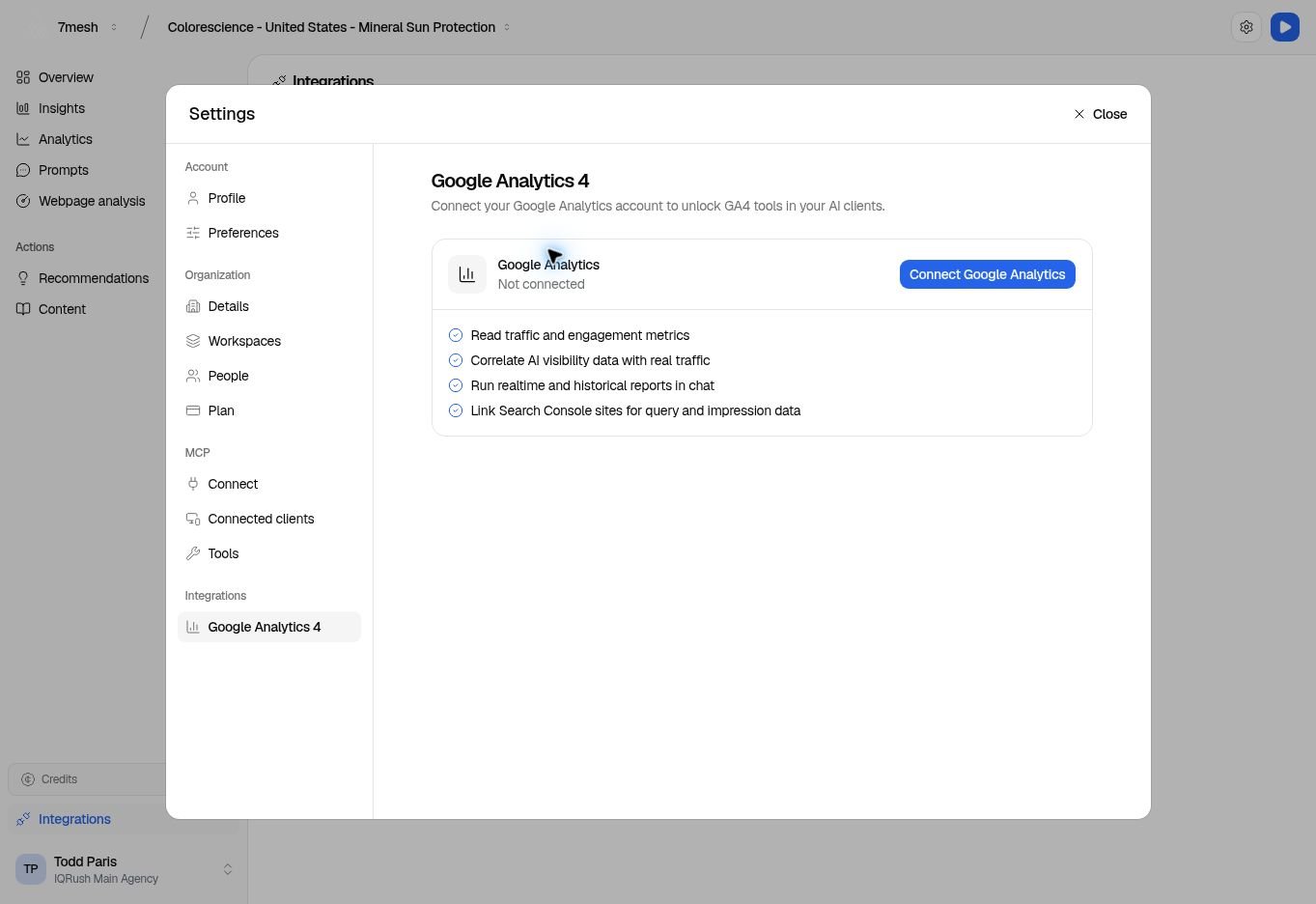
3. Review the connection status in **Google Analytics 4**.
 ## Connect and link the correct property
1. Select **Connect Google Analytics**.
2. Follow Google’s account-selection and permission screens for the account you intend to use.
3. Return to IQRush and check that the connection shows **Connected**.
4. Select **Link property**.
5. In **Link a GA4 property**, choose **Google Analytics property**.
6. Optionally choose **Search Console site**.
7. Under **Link to projects**, select the intended IQRush projects. Use **Search projects…** if needed.
8. Select **Link to 1 project** (or the number of projects you selected), then check **Linked properties**.
The project list can be filtered to the selected property’s domain. A project that is already linked may not be available for another link.
Connecting an account and linking a property are separate steps. Check both before relying on the connection for analytics work.
## Review or remove a link
Use **Linked properties** to check which property is associated with a project. Review the confirmation before unlinking a property or choosing **Disconnect**.
Removing a link stops the project from using that analytics connection until it is linked again. It does not delete the Google Analytics property.
This connection is separate from **Bring queries** during project creation. That setup route accepts an uploaded Search Console export without requiring a connected account.
## Ask about website outcomes
“Using the linked analytics data, summarize visits, conversions, and revenue attributed to AI referral traffic for the selected period.”
Ask Agent Q or connected ChatGPT or Claude when the relevant analytics tools and data are available. Specify the dates and ask for any tracking gaps. See more [questions and reports](/guides/31-questions-and-reports).
**Next:** [Choose a prompt source](/guides/03-prompt-sources) or [return to results](/guides/06-understand-results).
This documentation is built and hosted on [Mintlify](https://mintlify.com), a developer documentation platform.
## Connect and link the correct property
1. Select **Connect Google Analytics**.
2. Follow Google’s account-selection and permission screens for the account you intend to use.
3. Return to IQRush and check that the connection shows **Connected**.
4. Select **Link property**.
5. In **Link a GA4 property**, choose **Google Analytics property**.
6. Optionally choose **Search Console site**.
7. Under **Link to projects**, select the intended IQRush projects. Use **Search projects…** if needed.
8. Select **Link to 1 project** (or the number of projects you selected), then check **Linked properties**.
The project list can be filtered to the selected property’s domain. A project that is already linked may not be available for another link.
Connecting an account and linking a property are separate steps. Check both before relying on the connection for analytics work.
## Review or remove a link
Use **Linked properties** to check which property is associated with a project. Review the confirmation before unlinking a property or choosing **Disconnect**.
Removing a link stops the project from using that analytics connection until it is linked again. It does not delete the Google Analytics property.
This connection is separate from **Bring queries** during project creation. That setup route accepts an uploaded Search Console export without requiring a connected account.
## Ask about website outcomes
“Using the linked analytics data, summarize visits, conversions, and revenue attributed to AI referral traffic for the selected period.”
Ask Agent Q or connected ChatGPT or Claude when the relevant analytics tools and data are available. Specify the dates and ask for any tracking gaps. See more [questions and reports](/guides/31-questions-and-reports).
**Next:** [Choose a prompt source](/guides/03-prompt-sources) or [return to results](/guides/06-understand-results).
This documentation is built and hosted on [Mintlify](https://mintlify.com), a developer documentation platform.