> ## Documentation Index
> Fetch the complete documentation index at: https://docs.iqrush.ai/llms.txt
> Use this file to discover all available pages before exploring further.
# Write and edit in Content Playground
> Content Playground is the editor where you turn a brief or existing page into a working draft.
Content Playground is the editor where you turn a brief or existing page into a working draft.
 ## Get oriented
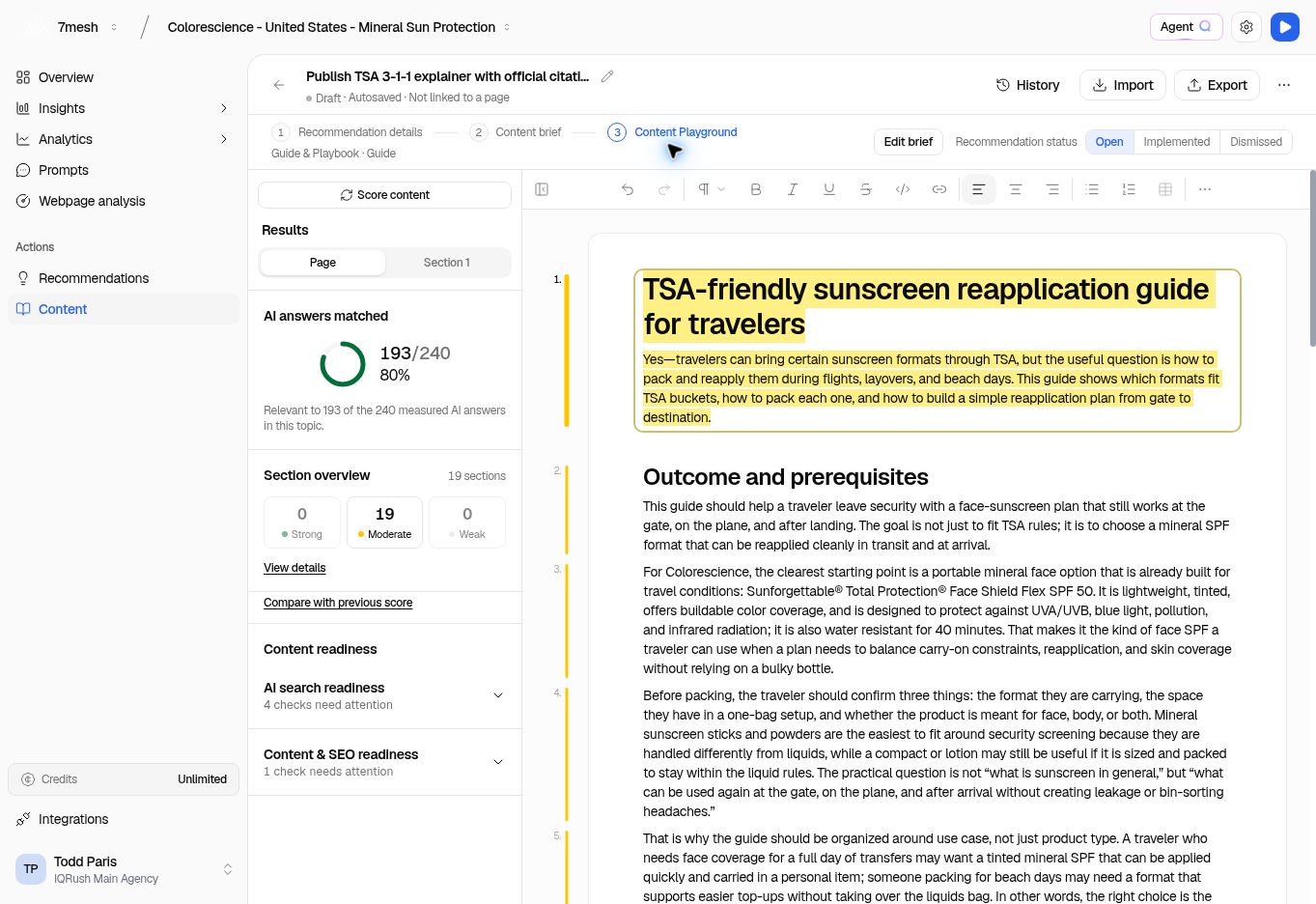
Check the title at the top. Use the rename control beside it if the document needs a clearer name.
The header shows the writing status and save state, such as **Draft · Autosaved**. It also shows whether the draft is linked to a page.
For recommendation-based content, use **Recommendation details**, **Content brief**, and **Content Playground** to move through the task. **Edit brief** returns to the writing instructions.
## Write and format
1. Click in the document and edit the text.
2. Use the formatting toolbar for headings, bold, italics, links, and lists.
3. Use **Undo** if you want to reverse a recent edit.
4. Wait for **Autosaved** before leaving the page.
5. Return with **Back to Content** when you are finished for now.
Use headings that tell the reader what each section covers. Review facts, links, product details, and claims in any generated draft before treating it as ready.
**Collapse analysis** gives the editor more room. Open the analysis again when you are ready to check the content.
## Work with Agent Q
You can start with **Write with Agent Q** from the brief. In the editor, Agent Q can help with a revision using the current content context.
Read the proposed revision before choosing **Apply to content**. Choose **Discard** if it does not fit. Check whether the proposal covers a selected section or the whole document.
## Import an existing draft
Choose **Import** to bring in **Markdown, HTML, or plain text**. Import replaces the document’s text; it does not append the file at the end.
If the document already contains text, review the replacement dialog. It offers **Keep current document** or **Replace document** and explains that a recovery version is saved first.
For a Word or PDF draft, export or convert it to a supported import format before using this control. The editor’s import formats differ from the formats accepted for brand guidelines.
## Keep the next step clear
Editing, scoring, and exporting are separate actions. After editing, update the score if needed. After review, export and publish through your usual publishing process.
## Ask Agent Q for a focused revision
“Revise this section to address the missing question. Preserve the facts and show the proposed change.”
Check the attached section or document context, then review the **Suggested revision** before applying it. See more [questions and reports](/guides/31-questions-and-reports).
**Next:** [Check content scores](/guides/18-content-analysis).
This documentation is built and hosted on [Mintlify](https://mintlify.com), a developer documentation platform.
## Get oriented
Check the title at the top. Use the rename control beside it if the document needs a clearer name.
The header shows the writing status and save state, such as **Draft · Autosaved**. It also shows whether the draft is linked to a page.
For recommendation-based content, use **Recommendation details**, **Content brief**, and **Content Playground** to move through the task. **Edit brief** returns to the writing instructions.
## Write and format
1. Click in the document and edit the text.
2. Use the formatting toolbar for headings, bold, italics, links, and lists.
3. Use **Undo** if you want to reverse a recent edit.
4. Wait for **Autosaved** before leaving the page.
5. Return with **Back to Content** when you are finished for now.
Use headings that tell the reader what each section covers. Review facts, links, product details, and claims in any generated draft before treating it as ready.
**Collapse analysis** gives the editor more room. Open the analysis again when you are ready to check the content.
## Work with Agent Q
You can start with **Write with Agent Q** from the brief. In the editor, Agent Q can help with a revision using the current content context.
Read the proposed revision before choosing **Apply to content**. Choose **Discard** if it does not fit. Check whether the proposal covers a selected section or the whole document.
## Import an existing draft
Choose **Import** to bring in **Markdown, HTML, or plain text**. Import replaces the document’s text; it does not append the file at the end.
If the document already contains text, review the replacement dialog. It offers **Keep current document** or **Replace document** and explains that a recovery version is saved first.
For a Word or PDF draft, export or convert it to a supported import format before using this control. The editor’s import formats differ from the formats accepted for brand guidelines.
## Keep the next step clear
Editing, scoring, and exporting are separate actions. After editing, update the score if needed. After review, export and publish through your usual publishing process.
## Ask Agent Q for a focused revision
“Revise this section to address the missing question. Preserve the facts and show the proposed change.”
Check the attached section or document context, then review the **Suggested revision** before applying it. See more [questions and reports](/guides/31-questions-and-reports).
**Next:** [Check content scores](/guides/18-content-analysis).
This documentation is built and hosted on [Mintlify](https://mintlify.com), a developer documentation platform.