> ## Documentation Index
> Fetch the complete documentation index at: https://docs.iqrush.ai/llms.txt
> Use this file to discover all available pages before exploring further.
# Prepare a clear content brief
> A content brief tells the writer who the content is for, what it needs to accomplish, and what it should include.
A content brief tells the writer who the content is for, what it needs to accomplish, and what it should include.
Open a content recommendation and select **Review brief**. Check the linked recommendation before editing the brief.
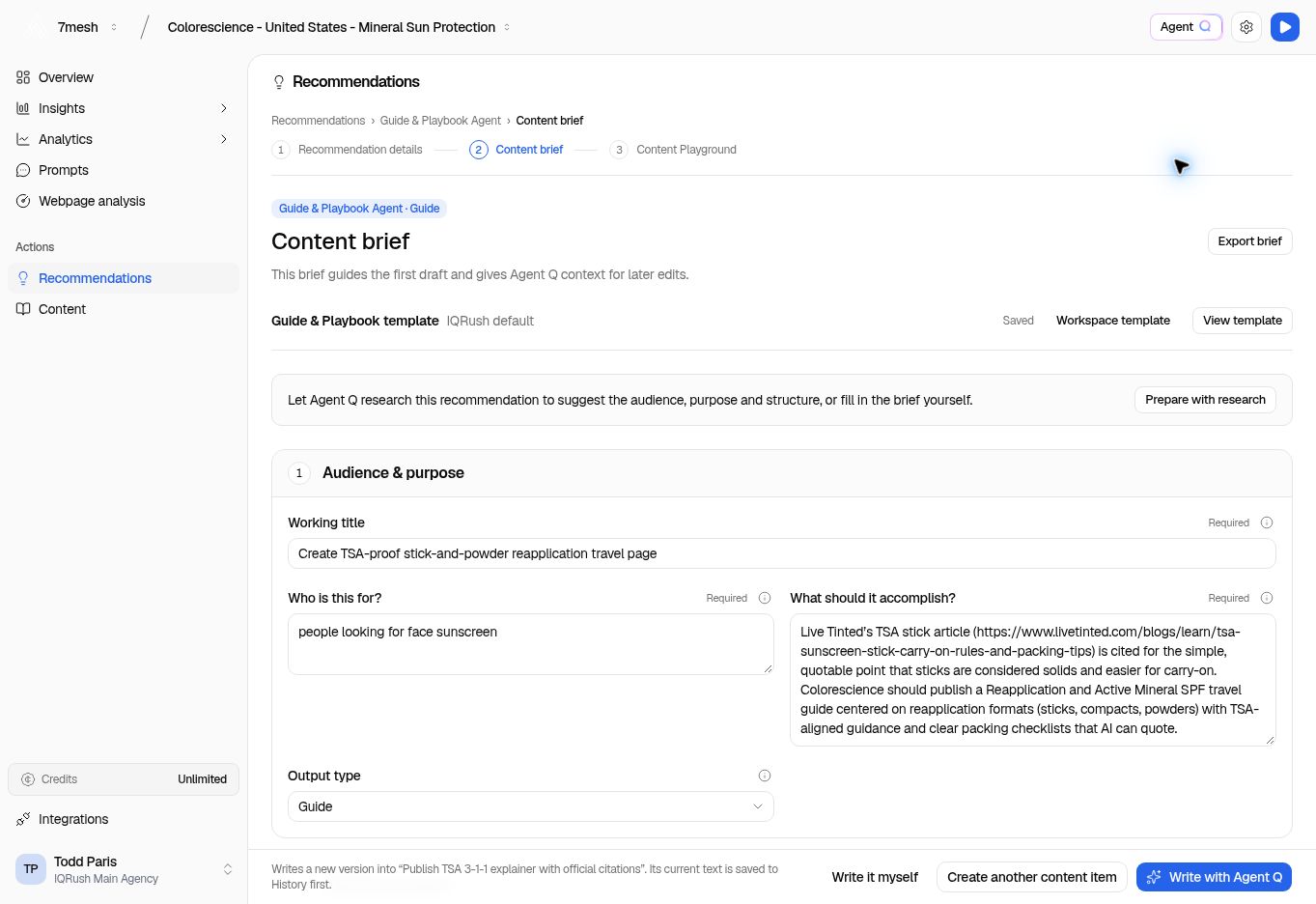 ## Complete the brief
For the Guide example, review these fields:
| Field | What to write |
| - | - |
| **Working title** | A clear title that describes the piece. It can change as the draft develops. |
| **Who is this for?** | The intended reader and their situation. |
| **What should it accomplish?** | The question to answer or the task the reader should be able to complete. |
| **Output type** | The format you want to produce, such as Guide. |
| **Steps & sections** | The structure the writer should follow. Use **Add section** and the item controls to adjust it. |
| **Angle & direction (optional)** | The emphasis or approach you want the writer to take. |
| **Required facts & restrictions** | Facts that must appear and boundaries the writer must respect. Use **Add item** for another entry. |
| **Writing guidance (optional)** | Tone, terminology, and other useful writing instructions. |
Be specific. For a travel guide, “help a traveler choose a practical reapplication format” is clearer than “create engaging thought leadership.”
## Add supporting guidance
Use **Prepare with research** when you want help preparing the brief. Review what it adds before using it.
**Writing requirements** lists requirements for the writing task. Treat these as instructions to satisfy, not as proof that the finished draft has passed a review.
To attach brand guidance:
1. Select **Upload brand guidelines**. Choose a **TXT, Markdown, PDF, or DOCX** file within the displayed limit, or paste guidance into **Review extracted text or paste guidance**. PDFs must contain extractable text; follow the page and character limits in the dialog.
2. Read the extracted text and remove anything the writer does not need.
3. Set **Use this guidance for** to **This brief only**, **This brief and new briefs in this project**, or, if you have permission, **This brief and new briefs across the workspace**.
4. Check **Include brand & writing guidance in this brief** as appropriate.
5. Select **Use this guidance** to attach it. Uploading the file alone does not attach it.
Existing briefs and drafts keep the guidance version already attached to them. Use the narrowest scope that fits the task.
## Use brief templates
**View template** opens the template for the brief. Review the structure, required facts, writing guidance, and any other fields available for its format. Changes apply to this brief; closing the edited template saves them. Keep instructions for this particular recommendation in its brief.
**Workspace template** controls the starting template for new briefs of that format across the workspace. A workspace administrator can edit and **Publish** it. Closing an edited workspace template also publishes the edits, as the dialog explains. Read that message before closing after a change.
Publishing a workspace template changes new briefs only. It does not rewrite existing briefs or drafts. **Reset to IQRush default** is available when a workspace template has been published; review the reset confirmation before using it.
Wait for the **Saved** indicator after changes.
## Start writing or share the brief
* **Write it myself** opens the writing route for you to draft the piece.
* **Write with Agent Q** uses the brief to prepare a draft.
* **Create another content item** starts a separate item when offered.
* **Export brief** lets you hand the brief to someone else.
If a draft already exists, read the message beside the writing actions. Writing another version can replace the working text after saving the current text in History.
## Ask Agent Q for a brief
“Turn this recommendation into a content brief for our audience, with the questions the draft should answer.”
Review the proposed audience, facts, and requirements before using the brief to write. See more [questions and reports](/guides/31-questions-and-reports).
**Next:** [Write in Content Playground](/guides/17-write-content).
This documentation is built and hosted on [Mintlify](https://mintlify.com), a developer documentation platform.
## Complete the brief
For the Guide example, review these fields:
| Field | What to write |
| - | - |
| **Working title** | A clear title that describes the piece. It can change as the draft develops. |
| **Who is this for?** | The intended reader and their situation. |
| **What should it accomplish?** | The question to answer or the task the reader should be able to complete. |
| **Output type** | The format you want to produce, such as Guide. |
| **Steps & sections** | The structure the writer should follow. Use **Add section** and the item controls to adjust it. |
| **Angle & direction (optional)** | The emphasis or approach you want the writer to take. |
| **Required facts & restrictions** | Facts that must appear and boundaries the writer must respect. Use **Add item** for another entry. |
| **Writing guidance (optional)** | Tone, terminology, and other useful writing instructions. |
Be specific. For a travel guide, “help a traveler choose a practical reapplication format” is clearer than “create engaging thought leadership.”
## Add supporting guidance
Use **Prepare with research** when you want help preparing the brief. Review what it adds before using it.
**Writing requirements** lists requirements for the writing task. Treat these as instructions to satisfy, not as proof that the finished draft has passed a review.
To attach brand guidance:
1. Select **Upload brand guidelines**. Choose a **TXT, Markdown, PDF, or DOCX** file within the displayed limit, or paste guidance into **Review extracted text or paste guidance**. PDFs must contain extractable text; follow the page and character limits in the dialog.
2. Read the extracted text and remove anything the writer does not need.
3. Set **Use this guidance for** to **This brief only**, **This brief and new briefs in this project**, or, if you have permission, **This brief and new briefs across the workspace**.
4. Check **Include brand & writing guidance in this brief** as appropriate.
5. Select **Use this guidance** to attach it. Uploading the file alone does not attach it.
Existing briefs and drafts keep the guidance version already attached to them. Use the narrowest scope that fits the task.
## Use brief templates
**View template** opens the template for the brief. Review the structure, required facts, writing guidance, and any other fields available for its format. Changes apply to this brief; closing the edited template saves them. Keep instructions for this particular recommendation in its brief.
**Workspace template** controls the starting template for new briefs of that format across the workspace. A workspace administrator can edit and **Publish** it. Closing an edited workspace template also publishes the edits, as the dialog explains. Read that message before closing after a change.
Publishing a workspace template changes new briefs only. It does not rewrite existing briefs or drafts. **Reset to IQRush default** is available when a workspace template has been published; review the reset confirmation before using it.
Wait for the **Saved** indicator after changes.
## Start writing or share the brief
* **Write it myself** opens the writing route for you to draft the piece.
* **Write with Agent Q** uses the brief to prepare a draft.
* **Create another content item** starts a separate item when offered.
* **Export brief** lets you hand the brief to someone else.
If a draft already exists, read the message beside the writing actions. Writing another version can replace the working text after saving the current text in History.
## Ask Agent Q for a brief
“Turn this recommendation into a content brief for our audience, with the questions the draft should answer.”
Review the proposed audience, facts, and requirements before using the brief to write. See more [questions and reports](/guides/31-questions-and-reports).
**Next:** [Write in Content Playground](/guides/17-write-content).
This documentation is built and hosted on [Mintlify](https://mintlify.com), a developer documentation platform.