> ## Documentation Index
> Fetch the complete documentation index at: https://docs.iqrush.ai/llms.txt
> Use this file to discover all available pages before exploring further.
# Inspect an individual webpage
> Use Webpage analysis to inspect how a page relates to the AI answers in your project.
Use **Webpage analysis** to inspect how a page relates to the AI answers in your project. The page is divided into segments so you can examine specific parts.
## Open a page
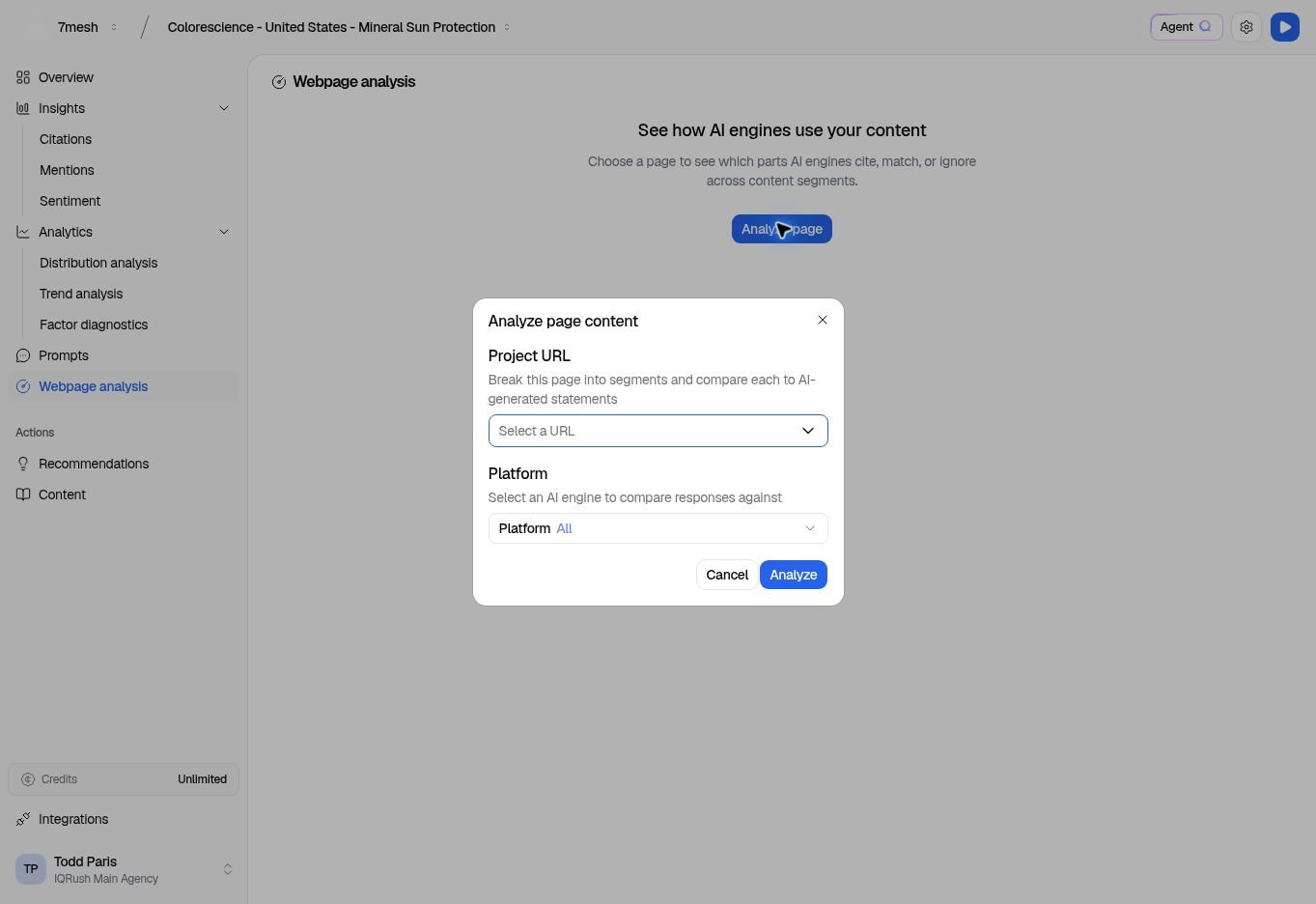
1. Select **Webpage analysis** in the left menu.
2. If no page is selected, choose **Analyze page**.
3. In **Analyze page content**, choose **Project URL**.
4. Set **Platform** or leave it on **All**.
5. Select **Analyze**.
 ## Inspect the content
The **Content** view shows the page and a list of segments. Select a segment to focus on that part.
## Inspect the content
The **Content** view shows the page and a list of segments. Select a segment to focus on that part.
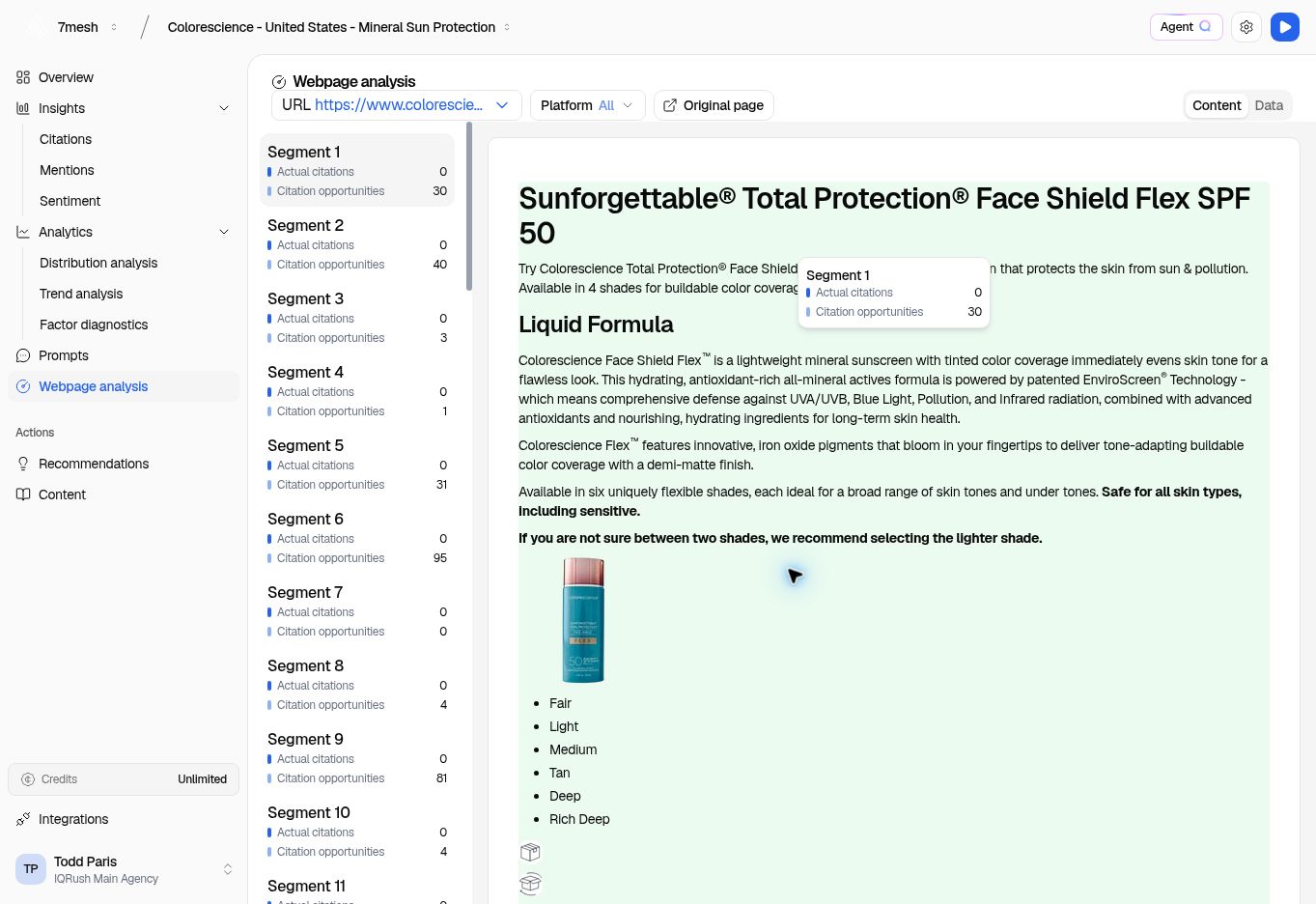 Two labels are particularly useful:
* **Actual citations:** recorded citations associated with the segment.
* **Citation opportunities:** relevant matches that the view identifies as opportunities.
An opportunity is not a recorded citation or a promise of a future citation. In the screenshot, Segment 1 has opportunities but no actual citations.
Use **Original page** to read the source page. The analyzed content represents what is available to this project’s selected run; a live website may have changed since that capture.
## Read the data
Choose **Data** for the structured view. Inspect the selected segment and its available evidence. Keep the platform and URL selections in mind when comparing segments.
Choose another **URL** from the selector to inspect another page. Use **Platform** to focus on a single engine.
## Move from analysis to editing
To work on your own page, open **Content → Open existing content** and choose it there. Webpage analysis is for inspecting evidence; Content Playground is where you work on a draft.
## Ask about a page
“Compare the available page content with the questions it needs to answer. Suggest the most useful product-page improvements.”
Name the URL in Agent Q or connected ChatGPT or Claude. Ask the assistant to identify any page content it cannot access. See more [questions and reports](/guides/31-questions-and-reports).
**Next:** [Open or create content](/guides/16-find-content).
This documentation is built and hosted on [Mintlify](https://mintlify.com), a developer documentation platform.
Two labels are particularly useful:
* **Actual citations:** recorded citations associated with the segment.
* **Citation opportunities:** relevant matches that the view identifies as opportunities.
An opportunity is not a recorded citation or a promise of a future citation. In the screenshot, Segment 1 has opportunities but no actual citations.
Use **Original page** to read the source page. The analyzed content represents what is available to this project’s selected run; a live website may have changed since that capture.
## Read the data
Choose **Data** for the structured view. Inspect the selected segment and its available evidence. Keep the platform and URL selections in mind when comparing segments.
Choose another **URL** from the selector to inspect another page. Use **Platform** to focus on a single engine.
## Move from analysis to editing
To work on your own page, open **Content → Open existing content** and choose it there. Webpage analysis is for inspecting evidence; Content Playground is where you work on a draft.
## Ask about a page
“Compare the available page content with the questions it needs to answer. Suggest the most useful product-page improvements.”
Name the URL in Agent Q or connected ChatGPT or Claude. Ask the assistant to identify any page content it cannot access. See more [questions and reports](/guides/31-questions-and-reports).
**Next:** [Open or create content](/guides/16-find-content).
This documentation is built and hosted on [Mintlify](https://mintlify.com), a developer documentation platform.