> ## Documentation Index
> Fetch the complete documentation index at: https://docs.iqrush.ai/llms.txt
> Use this file to discover all available pages before exploring further.
# Review and find prompts
> Review the questions before your first run.
Review the questions before your first run. A decision-grade result starts with questions that fit the purpose of the project. For non-branded discovery, they should let the engine choose which brands to introduce.
## Before launch
On **Review your prompt set**:
1. Read questions from each topic, rather than checking only the first few rows.
2. Use **Search prompts**, **Intent**, and **Prompt type** to narrow the list. A filter may be absent if there are no labels to filter yet.
3. Review each question’s wording and labels. Make changes with the controls available in the table.
4. Use **Add Prompt** if another question is needed and the control is available. Follow any change allowance shown on the screen.
5. Select **Validate** when it is offered to check edits or fill missing labels.
6. Read the validation result, then select **Continue**.
## Understand the quality checks
IQRush checks the uploaded file and reviews the prompt set at different stages. Read both the upload messages and the review findings.
| Check | What to review or improve |
| - | - |
| **Brand terms in prompts** | For a non-branded discovery project, remove wording that names your brand or a competitor. Keep deliberate branded questions in a separate project. |
| **Duplicates and near-duplicates** | The import process can remove repeated or closely repeated prompts. Check the accepted rows so you know what will run. |
| **Missing or uneven labels** | Review topic, intent, and prompt-type coverage. Fill gaps that matter to your measurement purpose. |
| **Too few prompts in a topic** | Review the displayed count and warning. A small set may not provide enough evidence to assess stability or separate signal from noise. |
| **Unusable wording** | Replace placeholders, vague fragments, or text that does not express a useful question. |
Review **similarity in meaning**, sometimes called semantic similarity, yourself as well. Two differently worded prompts may still ask essentially the same thing. The automated checks help you find issues; they do not guarantee that every repeated idea or missing customer need has been found.
Use **Add Prompt** and the editing controls where available to address a gap, then **Validate** when offered. Validation can fill missing labels and flag wording; it is not a promise to rewrite or balance the whole set for you.
The review can show warnings about the set. If a warning dialog offers **Launch anyway**, continuing does not resolve the warning or certify the result. Follow any blocking message if launch is refused, and correct the issue it identifies. The final launch checks still apply.
Nothing runs until you select **Launch** on the final setup screen.
Use the prompt count and quality checks as preparation. The completed measurement still needs to satisfy the stability and signal-to-noise checks described in [Understand your first results](/guides/06-understand-results).
## After launch
Open **Prompts** in the left menu to see the project’s questions.
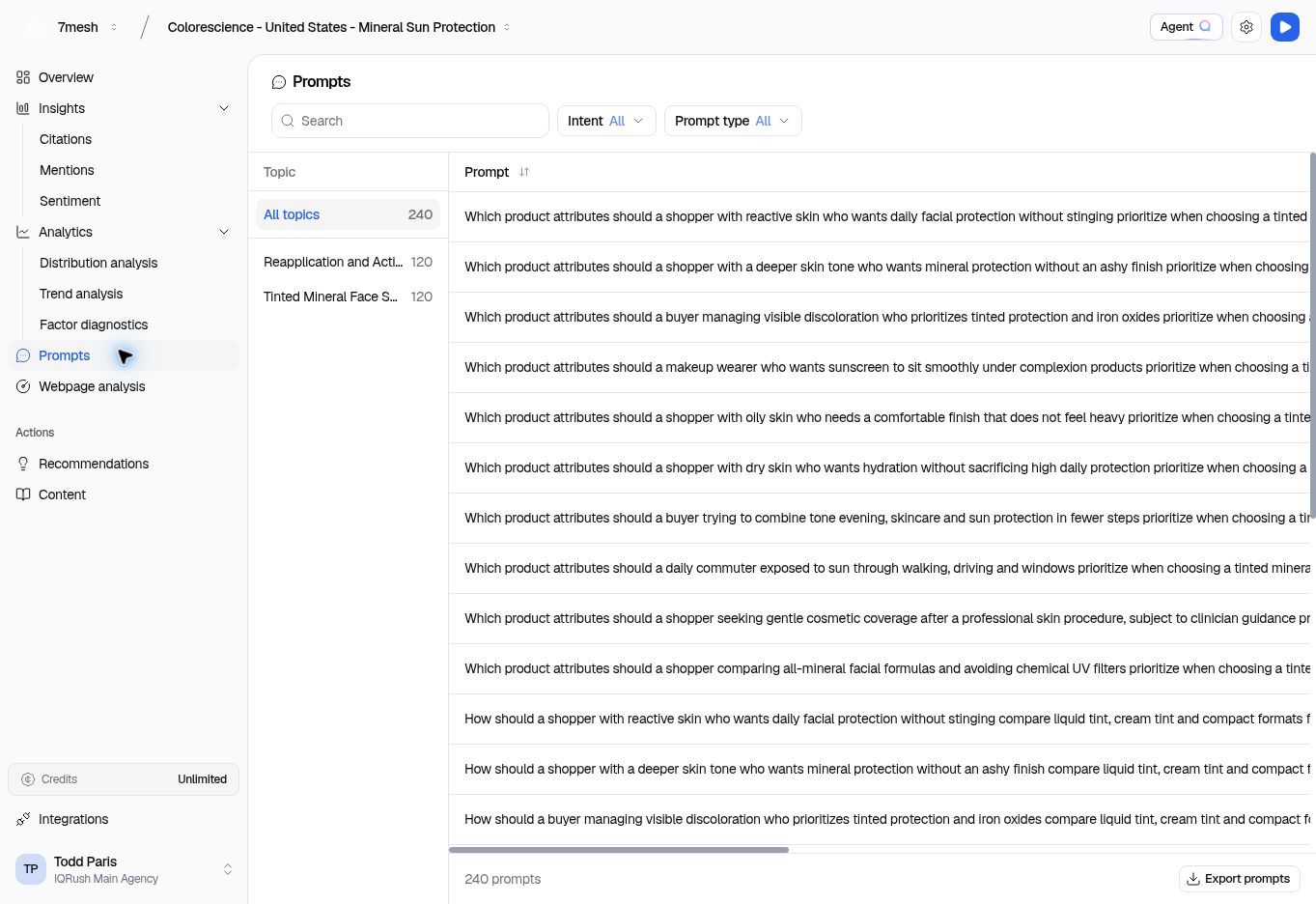 1. Choose **All topics** or a specific topic.
2. Use **Search**, **Intent**, or **Prompt type** to find the questions you need.
3. Read the **Prompt**, **Intent**, and **Prompt type** columns. Scroll across the table when a long question pushes other columns out of view.
4. Select **Export prompts** to download the set.
This page lets you inspect and export the established prompt set. To measure a different topic set, create another project.
## What the labels mean
**Intent** describes the purpose of the question, such as learning, comparing options, or preparing to buy. **Prompt type** describes the kind of question, such as a comparison or a request for recommendations. These labels also appear as filters in results.
**Next:** [Run the project](/guides/05-runs-and-schedules).
This documentation is built and hosted on [Mintlify](https://mintlify.com), a developer documentation platform.
1. Choose **All topics** or a specific topic.
2. Use **Search**, **Intent**, or **Prompt type** to find the questions you need.
3. Read the **Prompt**, **Intent**, and **Prompt type** columns. Scroll across the table when a long question pushes other columns out of view.
4. Select **Export prompts** to download the set.
This page lets you inspect and export the established prompt set. To measure a different topic set, create another project.
## What the labels mean
**Intent** describes the purpose of the question, such as learning, comparing options, or preparing to buy. **Prompt type** describes the kind of question, such as a comparison or a request for recommendations. These labels also appear as filters in results.
**Next:** [Run the project](/guides/05-runs-and-schedules).
This documentation is built and hosted on [Mintlify](https://mintlify.com), a developer documentation platform.