> ## Documentation Index
> Fetch the complete documentation index at: https://docs.iqrush.ai/llms.txt
> Use this file to discover all available pages before exploring further.
# Create your first project
> Set up a project around the brand and subject you want to understand.
Set up a project around the brand and subject you want to understand. Before you begin, have your website address, brand names, and a short list of relevant competitors ready.
## Enter the project details
1. Open the project selector at the top of the app and choose **New Project**.
2. Complete **Project details**.
3. Enter a domain or page address in **Domain**, then select **Add**. Check that the address appears in the list.
4. Select **Continue**.
| Field | What to enter |
| - | - |
| **Project name** | A name your team will recognize. Include the brand and subject when useful. |
| **Workspace** | The workspace where the project belongs. Choose carefully: the project’s workspace cannot be changed in Project settings. |
| **Region** | Choose the relevant location from the search suggestions if you want to specify one. Typing a project name that includes a country does not set this field. |
| **Domain** | The website or specific pages you want to measure. Use **Add** for each address. |
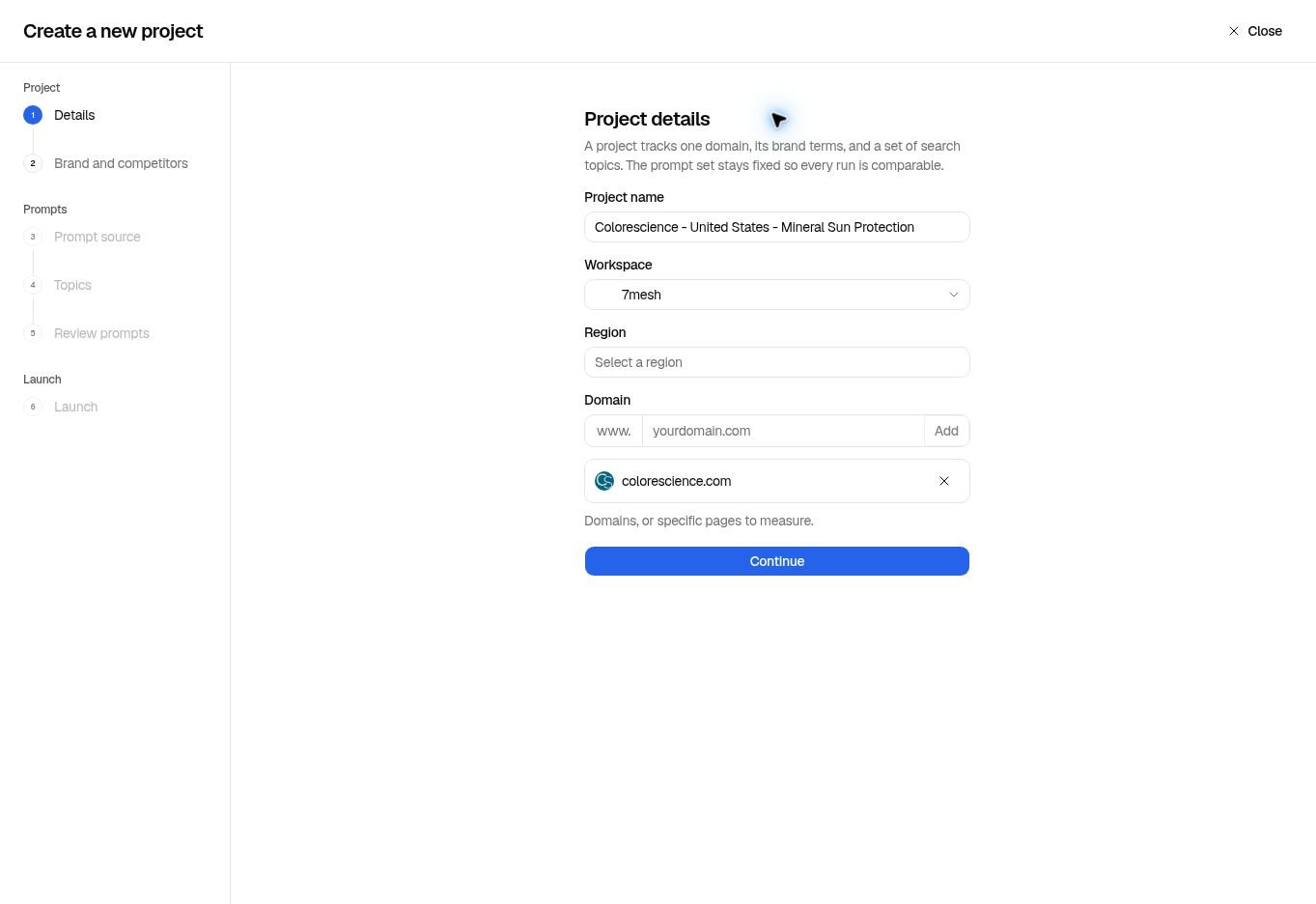 Start with the main domain, such as **colorescience.com**. IQRush uses it to identify which captured source pages belong to your website. You do not need to enter every URL that might appear in an answer. You can also add a specific page address when it is relevant to the project.
The pages available in results depend on what the run found and could capture. Entering a domain does not guarantee a complete inventory of every relevant page on the site. Review **Top cited URLs** and **Webpage analysis** after the run to see the available pages.
Use one brand’s website as the starting scope. Create separate projects when you need separate brand results. Adding multiple domains does not create separate reports for each brand.
## Check your brand and competitors
On **Brand terms and competitors**, review the suggested **Brand terms** and **Tracked Competitors**.
* Add relevant brand, product, or service names that are missing.
* Include alternative spellings and brand-specific acronyms that people actually use.
* Keep terms specific enough to identify your business. A broad term can bring unrelated mentions into what you are trying to track.
* Remove competitor suggestions that do not belong.
* Use **Add a competitor domain** to include another competitor.
* Check the domain as well as the displayed name before continuing.
Start with the main domain, such as **colorescience.com**. IQRush uses it to identify which captured source pages belong to your website. You do not need to enter every URL that might appear in an answer. You can also add a specific page address when it is relevant to the project.
The pages available in results depend on what the run found and could capture. Entering a domain does not guarantee a complete inventory of every relevant page on the site. Review **Top cited URLs** and **Webpage analysis** after the run to see the available pages.
Use one brand’s website as the starting scope. Create separate projects when you need separate brand results. Adding multiple domains does not create separate reports for each brand.
## Check your brand and competitors
On **Brand terms and competitors**, review the suggested **Brand terms** and **Tracked Competitors**.
* Add relevant brand, product, or service names that are missing.
* Include alternative spellings and brand-specific acronyms that people actually use.
* Keep terms specific enough to identify your business. A broad term can bring unrelated mentions into what you are trying to track.
* Remove competitor suggestions that do not belong.
* Use **Add a competitor domain** to include another competitor.
* Check the domain as well as the displayed name before continuing.
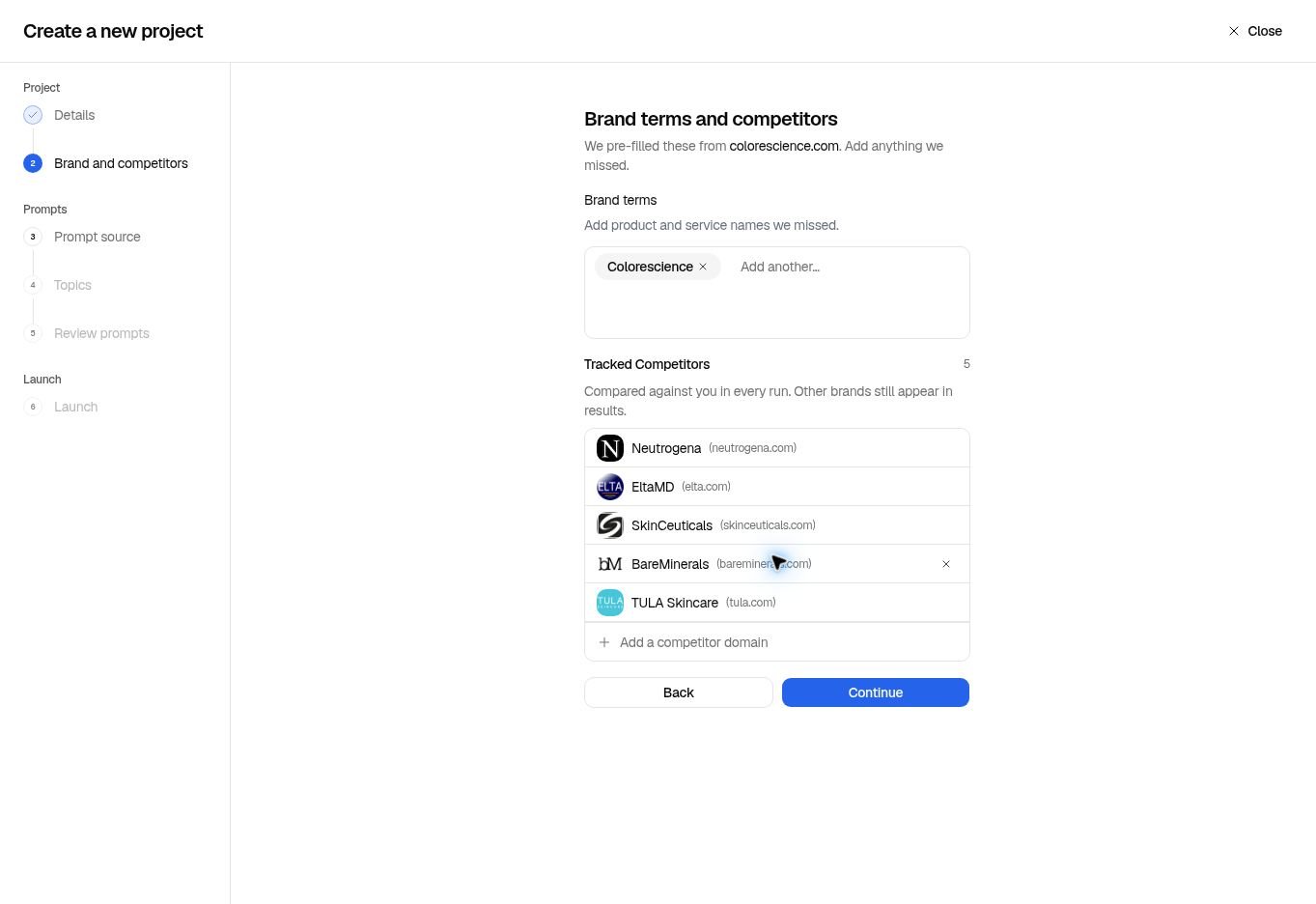 For Colorescience, review names such as **Colorescience**, **Color Science**, **Sunforgettable**, and **Face Shield Flex** against the products and brand scope you intend to measure. Broad category terms such as “sunscreen,” “mineral,” or “SPF” describe many brands and make poor brand identifiers. An acronym belongs here only when it clearly identifies your brand in this context.
Other brands can still appear in results even if they are not tracked competitors. **Brand terms** tells IQRush what you want to recognize in the answers; it is separate from deciding whether those names should appear in the questions. For ordinary discovery measurement, keep the prompts non-branded. [See the prompt best practices](/guides/03-prompt-sources).
## Choose topics and launch
1. Select **Continue** to reach **Prompt source**.
2. For a first project, choose **Create with IQRush**.
3. Select the topics you want to measure on **Select your topics**. Use focused subjects that matter to your customers, and avoid topics that repeat the same customer need under different names. Review the topic allowance shown on the screen.
4. Continue to **Review your prompt set**. Check the questions and their labels.
5. Continue to **Launch**. Review the summary, select the available **AI engines**, and check the displayed credits per run.
6. Leave **Automatic runs** off for a one-time start, or set a schedule.
7. Select **Launch** when the setup is ready. This creates the project and starts its first run.
The project’s topics, brand terms, and domains are locked after creation to keep later runs comparable. Check them before launch.
**Next:** [Choose a prompt source](/guides/03-prompt-sources) or [review your prompt set](/guides/04-review-prompts).
This documentation is built and hosted on [Mintlify](https://mintlify.com), a developer documentation platform.
For Colorescience, review names such as **Colorescience**, **Color Science**, **Sunforgettable**, and **Face Shield Flex** against the products and brand scope you intend to measure. Broad category terms such as “sunscreen,” “mineral,” or “SPF” describe many brands and make poor brand identifiers. An acronym belongs here only when it clearly identifies your brand in this context.
Other brands can still appear in results even if they are not tracked competitors. **Brand terms** tells IQRush what you want to recognize in the answers; it is separate from deciding whether those names should appear in the questions. For ordinary discovery measurement, keep the prompts non-branded. [See the prompt best practices](/guides/03-prompt-sources).
## Choose topics and launch
1. Select **Continue** to reach **Prompt source**.
2. For a first project, choose **Create with IQRush**.
3. Select the topics you want to measure on **Select your topics**. Use focused subjects that matter to your customers, and avoid topics that repeat the same customer need under different names. Review the topic allowance shown on the screen.
4. Continue to **Review your prompt set**. Check the questions and their labels.
5. Continue to **Launch**. Review the summary, select the available **AI engines**, and check the displayed credits per run.
6. Leave **Automatic runs** off for a one-time start, or set a schedule.
7. Select **Launch** when the setup is ready. This creates the project and starts its first run.
The project’s topics, brand terms, and domains are locked after creation to keep later runs comparable. Check them before launch.
**Next:** [Choose a prompt source](/guides/03-prompt-sources) or [review your prompt set](/guides/04-review-prompts).
This documentation is built and hosted on [Mintlify](https://mintlify.com), a developer documentation platform.