> ## Documentation Index
> Fetch the complete documentation index at: https://docs.iqrush.ai/llms.txt
> Use this file to discover all available pages before exploring further.
# Start here
> IQRush helps you measure how your brand appears in AI answers and decide what to work on next.
IQRush helps you measure how your brand appears in AI answers and decide what to work on next. Its goal is **decision-grade measurement**: evidence that is sufficiently stable and precise to support the decision you are making.
AI answers can vary, even when the question stays the same. IQRush brings prompt-set checks, results stability, signal-to-noise, and confidence intervals into the workflow so you can judge the strength of the evidence alongside the result.
A **project** holds the brand, website, topics, and AI engines you want to measure. A **run** is one measurement of that project. A **workspace** groups projects for a brand, client, or team.
## Find your project
After signing in, use the workspace selector at the top left. Then use the project selector beside it to open your project. Check both names before you review results or write content.
If you have been invited but cannot find a project, check that you are using the invited account and the correct workspace. Your workspace administrator can check your access.
 ## Explore with an assistant
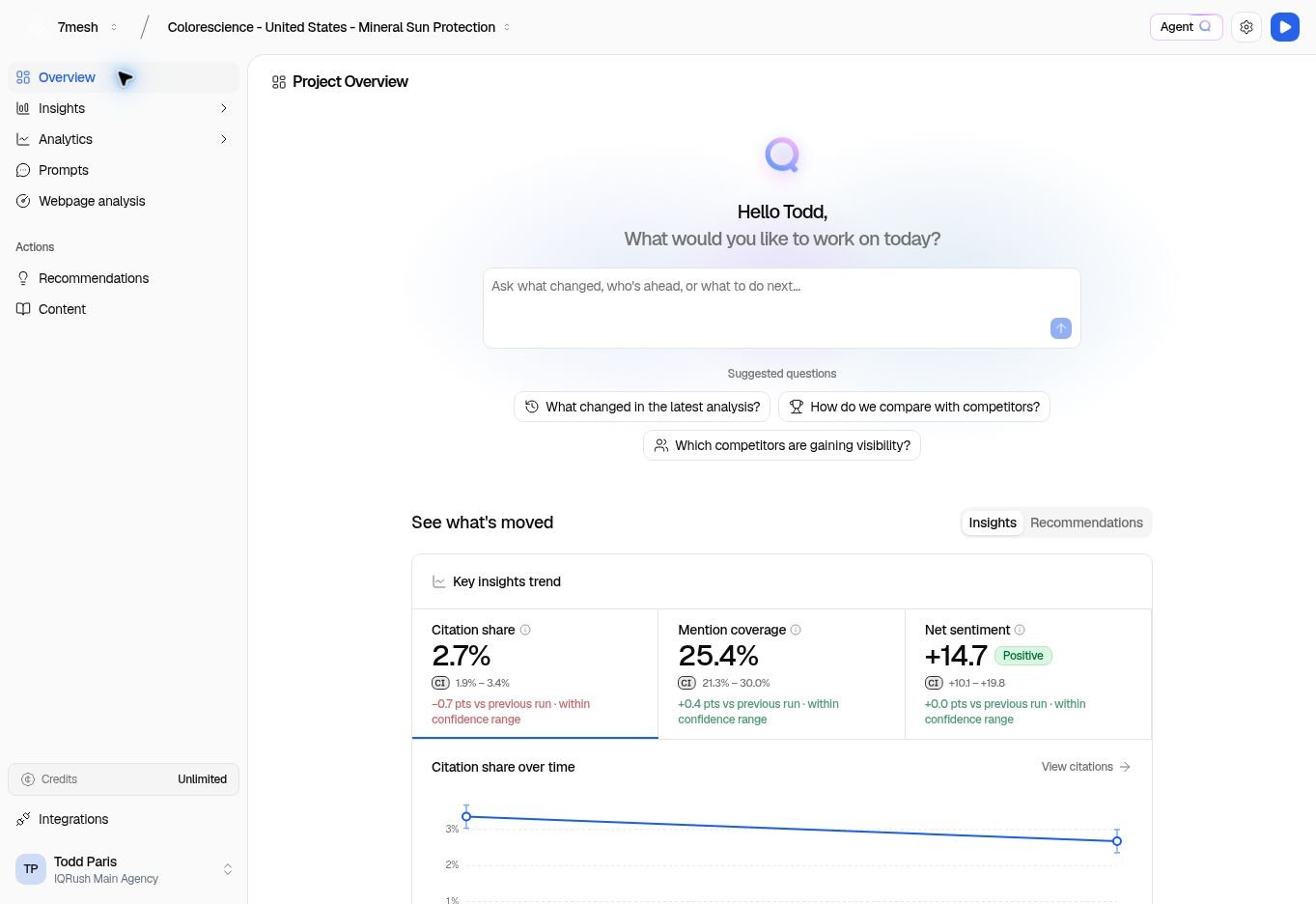
Start with a question in **Ask the agent** on **Overview**, your project’s summary page. **Agent Q** is also available from the **Agent** button on supported project pages, with a right-hand panel beside your work. Your saved discussions remain available through its conversation controls.
Prefer to work in **ChatGPT or Claude**? Connect your chosen assistant through IQRush’s MCP connection and select your project. Both approaches let you explore the available IQRush measurements, ask follow-up questions, and request an assessment for your team.
| Start in IQRush | Start in your preferred assistant |
| - | - |
| [Explore your project with Agent Q](/guides/23-agent-q). Use page context, investigate recommendations, and work on content. | [Explore your project with ChatGPT or Claude](/guides/30-connected-assistants). Connect, choose the project and run, then request an analysis or report. |
The two guides follow the same steps: start, set the context, ask, use the answer, check the evidence, and continue. Try the [question and report gallery](/guides/31-questions-and-reports) for competitive, channel, product, financial-services, and other perspectives.
Ask the assistant to preserve IQRush’s decision-grade checks: stability and signal-to-noise for rankings, confidence intervals for estimates, and the change assessment for comparisons. Keep the measured findings and proposed actions clear.
## Follow this path
1. **Set up what you want to measure.** [Create a project](/guides/02-create-project), choose your topics, and review the prompts.
2. **Complete a run.** A run collects the results used throughout the project. [Manage runs](/guides/05-runs-and-schedules).
3. **Check the evidence, then read the results.** Start with [Overview](/guides/06-understand-results), then open Citations to check **Results stability**, **Domain SNR**, and the confidence intervals. Explore Mentions or Sentiment for the questions that matter to you.
4. **Choose a useful next action.** [Recommendations](/guides/14-choose-recommendations) explains the work and the supporting evidence.
5. **Prepare and improve content.** Review the brief, write in Content Playground, and check the draft.
6. **Put the change into use.** Publish through your normal website or publishing process. Record the completed recommendation, then check a later run.
You can return to any step. You do not need to understand every chart before choosing your first task.
## About the examples
These guides use **Colorescience – United States – Mineral Sun Protection**. Its results, recommendations, and saved content illustrate the controls. Your project will have its own topics, numbers, and available actions. The setup screenshots show an unlaunched walkthrough; they do not reproduce every setting in the existing project.
**Next:** [Create a project](/guides/02-create-project), or [understand your results](/guides/06-understand-results) if your project already has a completed run.
This documentation is built and hosted on [Mintlify](https://mintlify.com), a developer documentation platform.
## Explore with an assistant
Start with a question in **Ask the agent** on **Overview**, your project’s summary page. **Agent Q** is also available from the **Agent** button on supported project pages, with a right-hand panel beside your work. Your saved discussions remain available through its conversation controls.
Prefer to work in **ChatGPT or Claude**? Connect your chosen assistant through IQRush’s MCP connection and select your project. Both approaches let you explore the available IQRush measurements, ask follow-up questions, and request an assessment for your team.
| Start in IQRush | Start in your preferred assistant |
| - | - |
| [Explore your project with Agent Q](/guides/23-agent-q). Use page context, investigate recommendations, and work on content. | [Explore your project with ChatGPT or Claude](/guides/30-connected-assistants). Connect, choose the project and run, then request an analysis or report. |
The two guides follow the same steps: start, set the context, ask, use the answer, check the evidence, and continue. Try the [question and report gallery](/guides/31-questions-and-reports) for competitive, channel, product, financial-services, and other perspectives.
Ask the assistant to preserve IQRush’s decision-grade checks: stability and signal-to-noise for rankings, confidence intervals for estimates, and the change assessment for comparisons. Keep the measured findings and proposed actions clear.
## Follow this path
1. **Set up what you want to measure.** [Create a project](/guides/02-create-project), choose your topics, and review the prompts.
2. **Complete a run.** A run collects the results used throughout the project. [Manage runs](/guides/05-runs-and-schedules).
3. **Check the evidence, then read the results.** Start with [Overview](/guides/06-understand-results), then open Citations to check **Results stability**, **Domain SNR**, and the confidence intervals. Explore Mentions or Sentiment for the questions that matter to you.
4. **Choose a useful next action.** [Recommendations](/guides/14-choose-recommendations) explains the work and the supporting evidence.
5. **Prepare and improve content.** Review the brief, write in Content Playground, and check the draft.
6. **Put the change into use.** Publish through your normal website or publishing process. Record the completed recommendation, then check a later run.
You can return to any step. You do not need to understand every chart before choosing your first task.
## About the examples
These guides use **Colorescience – United States – Mineral Sun Protection**. Its results, recommendations, and saved content illustrate the controls. Your project will have its own topics, numbers, and available actions. The setup screenshots show an unlaunched walkthrough; they do not reproduce every setting in the existing project.
**Next:** [Create a project](/guides/02-create-project), or [understand your results](/guides/06-understand-results) if your project already has a completed run.
This documentation is built and hosted on [Mintlify](https://mintlify.com), a developer documentation platform.